

Core Features
Cloud Workspace is an isolated cloud browser environment, mainly used for overseas account authorization, Facebook account warm-up, and multi-account isolation.- Isolated environment: each workspace uses its own browser profile, reducing interference between cookies and login history;
- Account isolation: one account per workspace; different accounts never share the same browser environment;
- Fingerprint management: the same account always uses its own workspace, keeping the network, time zone, language, and browser environment as stable as possible;
- Centralized management: create, start, stop, and manage multiple account environments from the Cloud Workspace list;
- Automation tasks: run available scripts inside a running workspace to help with repetitive actions such as browsing.
Before You Start
Make sure you have:- an AiToEarn account that can sign in normally;
- the Facebook, TikTok, YouTube, or other platform accounts you want to use in Cloud Workspace;
- an email address or phone number that can receive login verification codes;
- if you choose “External Proxy”, the proxy server address, port, username, and password.
Create a Cloud Workspace
1. Open Cloud Workspace
After signing in to AiToEarn, open Cloud Workspace. On the Cloud Browser page, click Create Cloud Workspace in the top-right corner.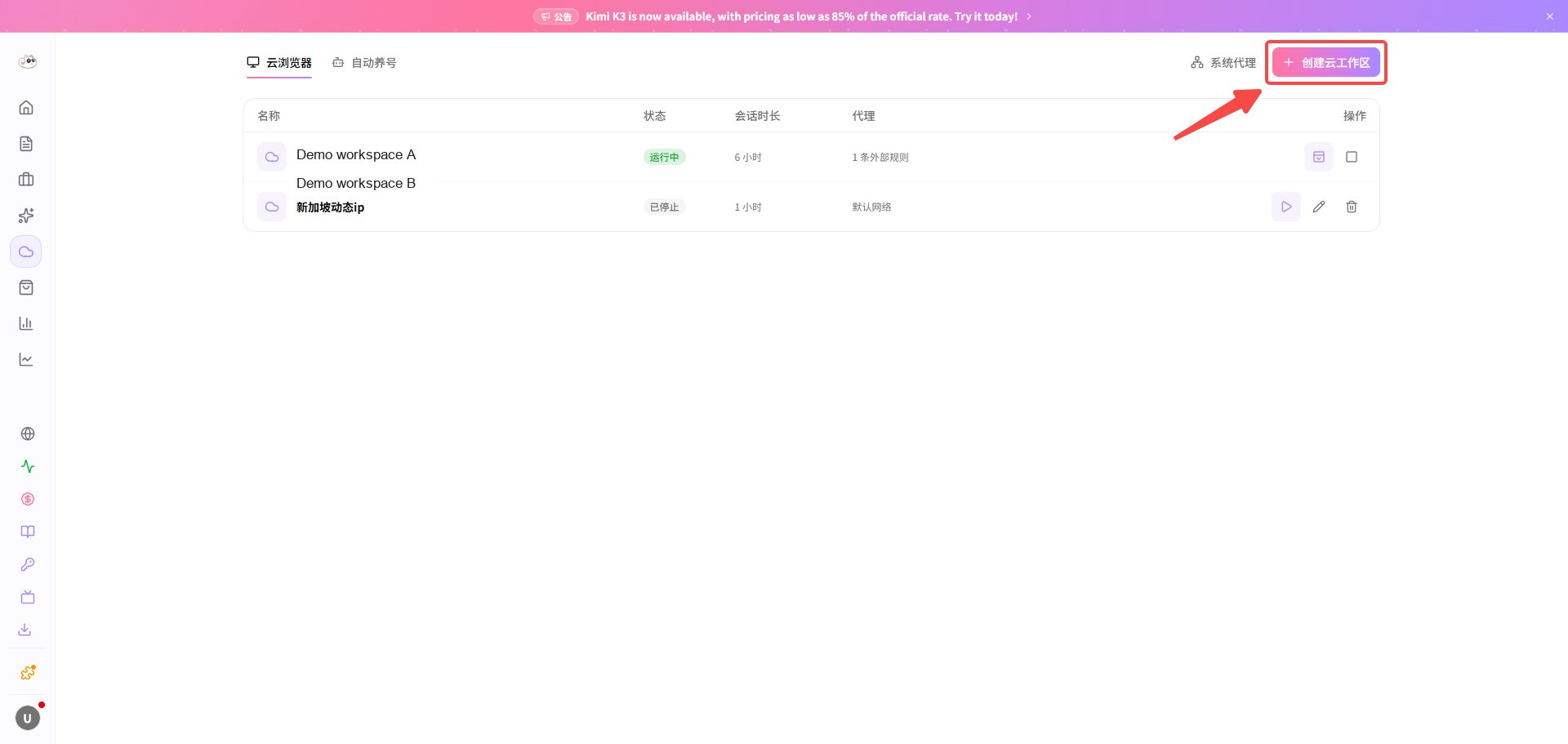
2. Choose a Usage Duration
Choose how long the workspace should run for this session. The page offers 15, 30, 60, 120, 240, and 360 minutes; if you are not sure, choose the recommended 60 minutes.3. Choose a Network Connection
Choose a connection method based on your network conditions:
If you plan to authorize or operate accounts on platforms with strict risk control such as Facebook, choose a stable proxy that matches the account’s region. Choose System proxy if you purchased a regional proxy from AiToEarn, or External proxy if you prepared your own proxy server.
4. Fill in the External Proxy
After selecting “External proxy”, enter the proxy server address, port, username, and password, then click Create Cloud Workspace. External proxies currently support HTTP only.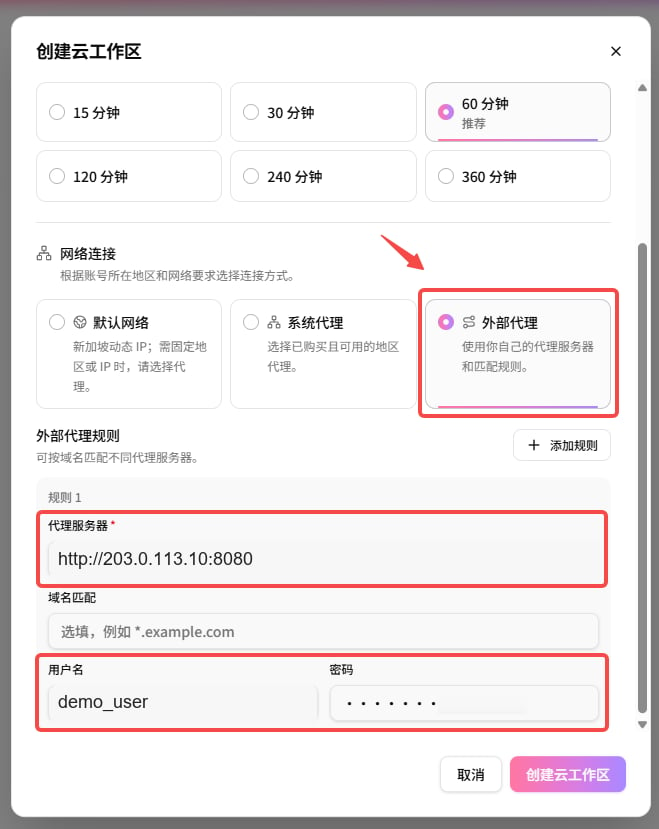
- the proxy server address and port must match the information provided by your proxy provider;
- if the proxy does not require authentication, whether the username and password can be left blank depends on the on-page prompts;
- never show real proxy passwords in screenshots, chat records, or public documents;
- if creation fails, first check that the address, port, username, and password are correct.
Authorize Overseas Accounts
5. Start the Cloud Workspace
Find the workspace you just created in the Cloud Browser list and click Start in the action column. When the workspace status changes to “Running”, you enter an isolated cloud browser environment.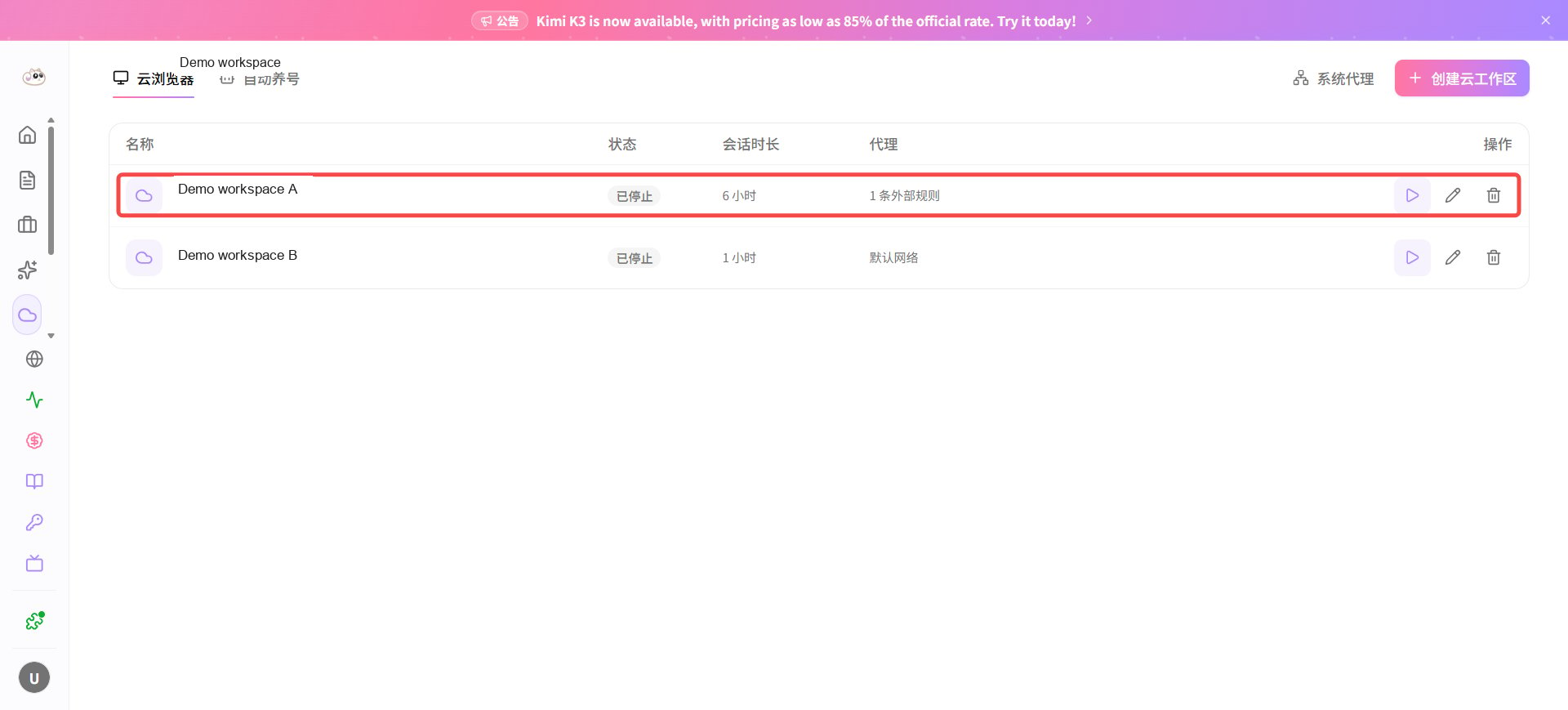
6. Sign in and authorize a social platform account
Inside the Cloud Workspace, open the platform you want to use, such as Facebook, TikTok, or YouTube, then complete account sign-in, authorization, and any required security checks. The steps below use authorizing a Facebook Page as an example. On the first sign-in, note that:- confirm in advance that your email, phone number, and verification codes can be received normally;
- if the platform asks for identity verification, complete it inside the current workspace whenever possible;
- after a successful sign-in, always open this account from its own workspace.
6.1 Sign in to Facebook inside the Cloud Workspace
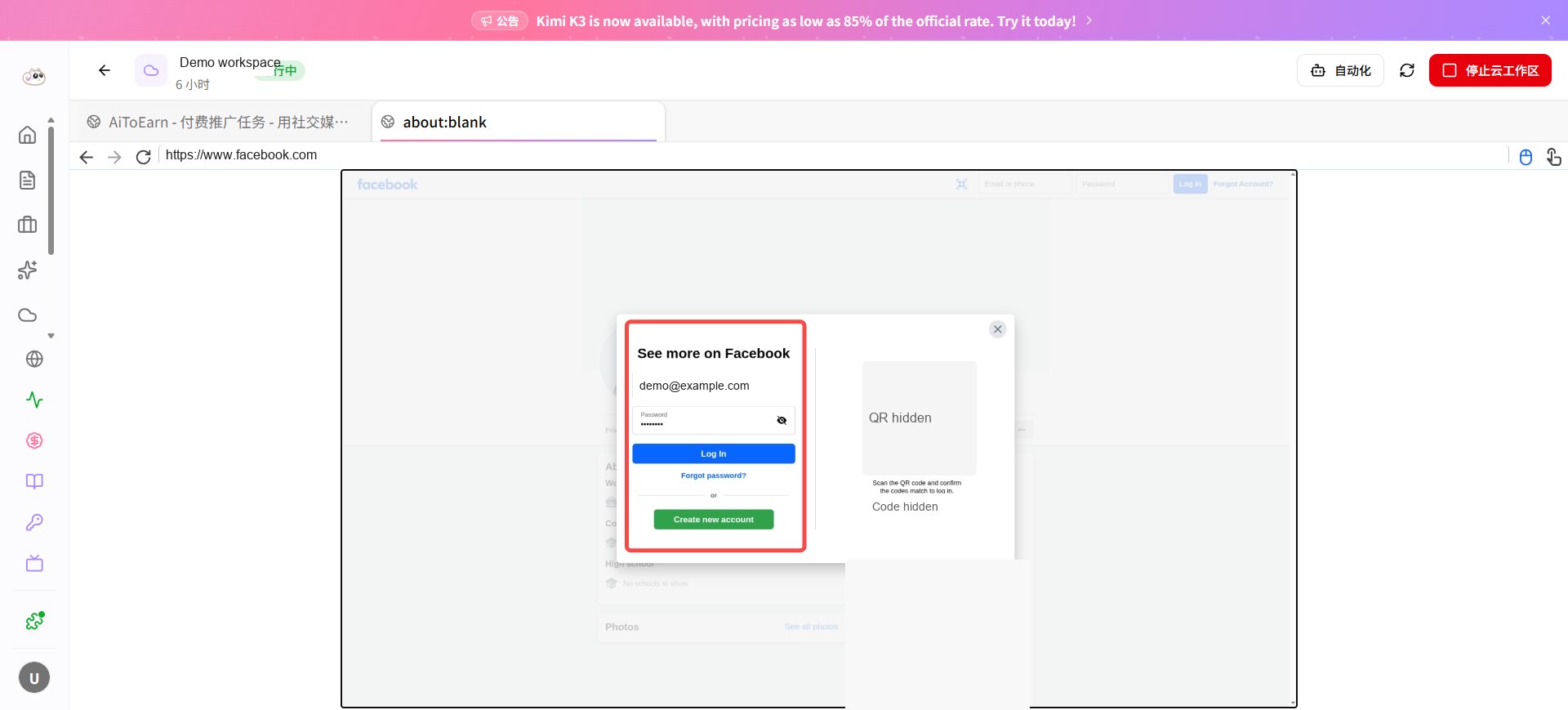
In the address bar at the top of the Cloud Workspace, enterhttps://www.facebook.com and sign in to your Facebook account. Do not sign in from your local browser.
After signing in, the login window disappears and Facebook pages open normally.
6.2 Add a channel in AiToEarn
Go back to the AiToEarn tab inside the Cloud Workspace, open My Channels, then click Add Channel in the channel management window.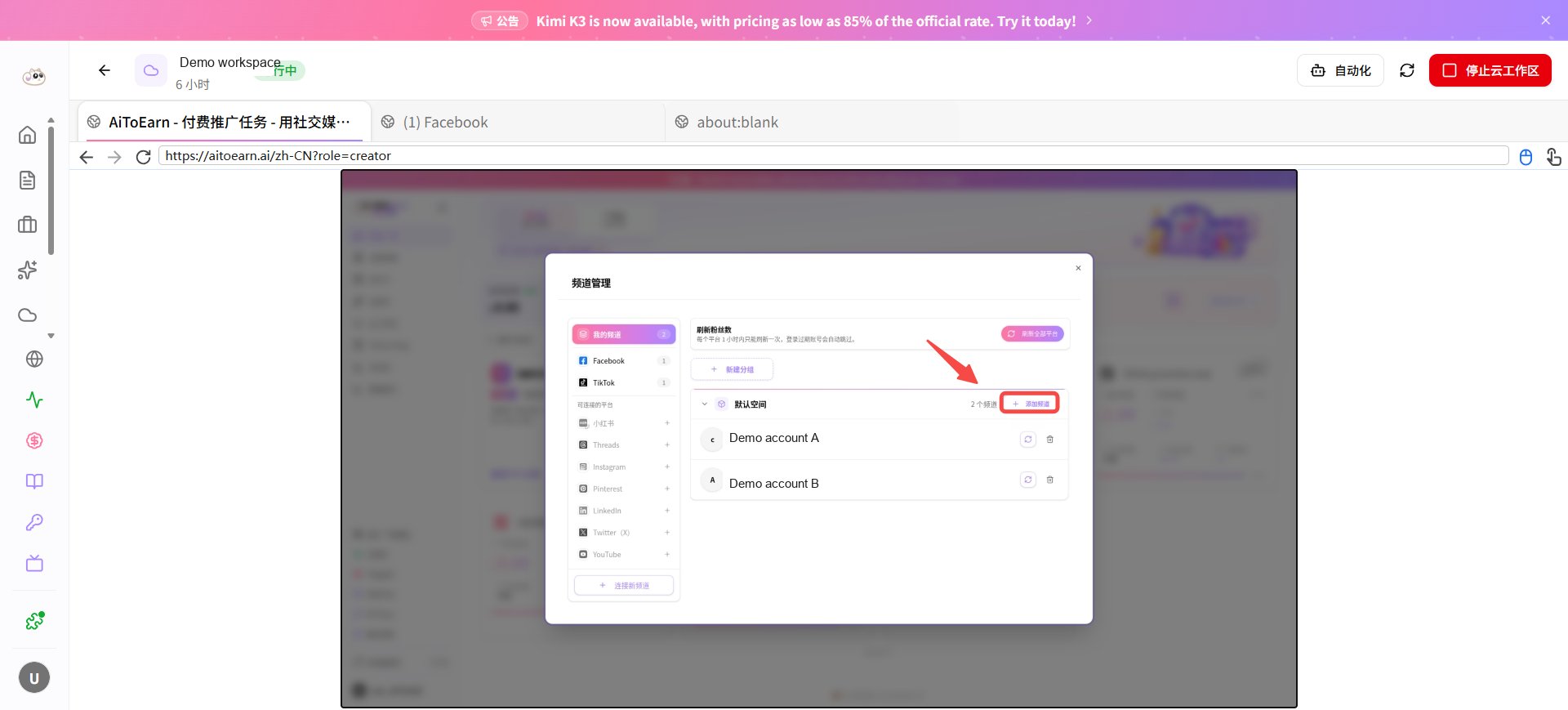
6.3 Select and authorize Facebook
Select Facebook, confirm the authorization as prompted, and choose the Facebook Page you want to bind. If you do not see the target Page, first confirm that the signed-in Facebook account has management permission for that Page.6.4 Confirm the authorization
Return to the channel management page after authorization. If the target Facebook Page appears in the channel list with an “Online” status, the authorization succeeded.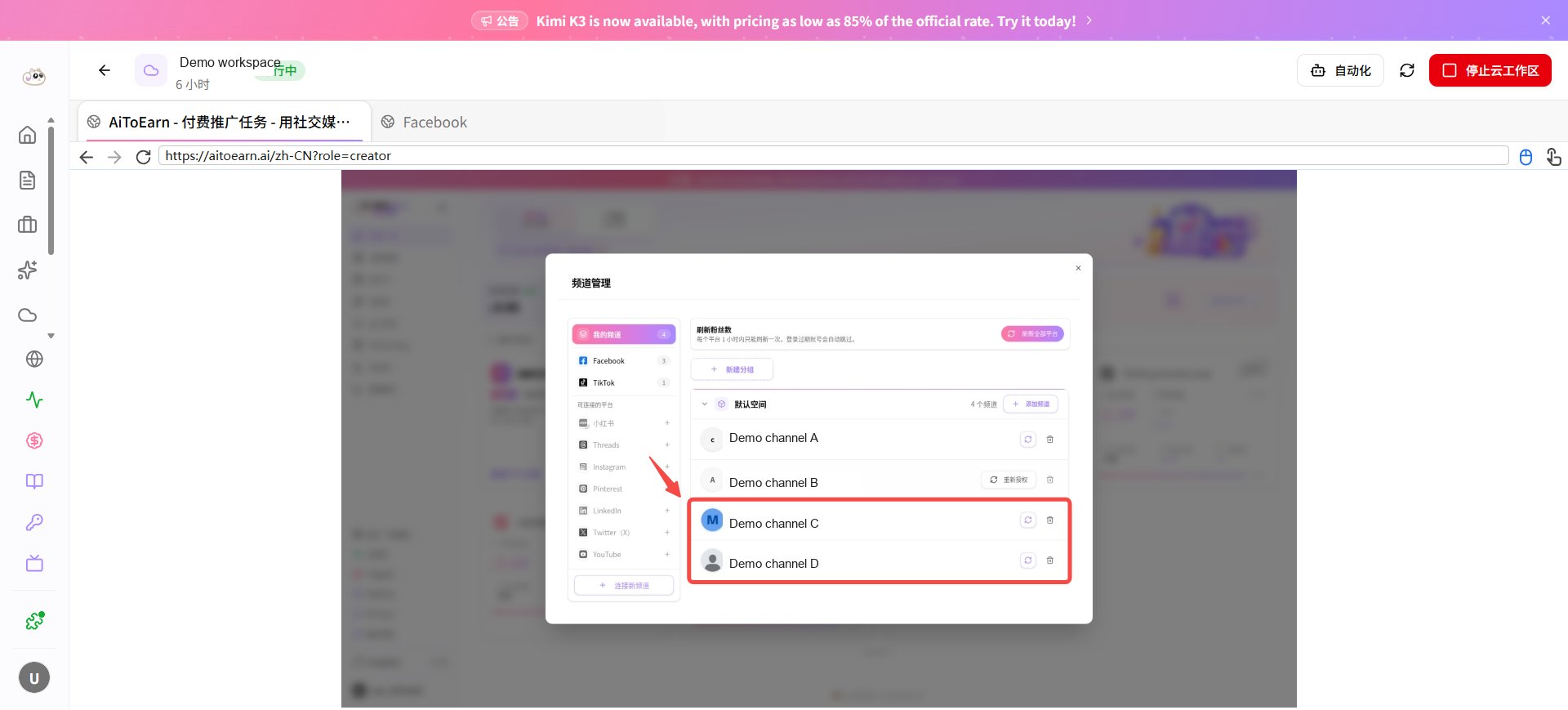
Facebook Account Warm-up
After signing in to Facebook, start with low-frequency, normal browsing so the account keeps using its workspace and network environment. Automation tasks are optional; if you only need manual operations, skip the automation steps.7. Choose an automation script
Inside a running Cloud Workspace, click Automation in the top-right corner. In the automation panel, choose the script you need, such as Facebook home feed browsing, and set the run scope, content filters, and advanced policies as prompted. After confirming the settings, click Run Now.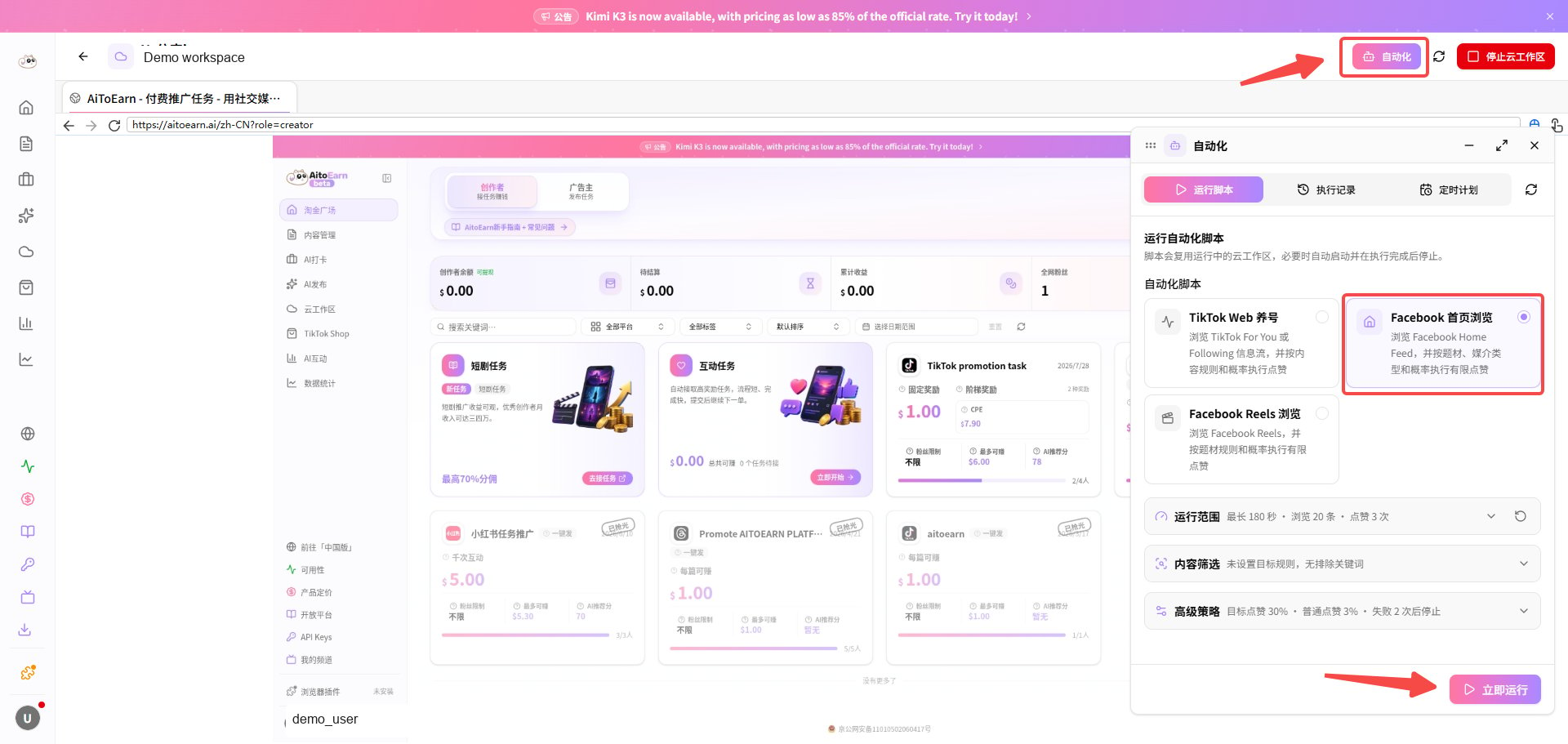
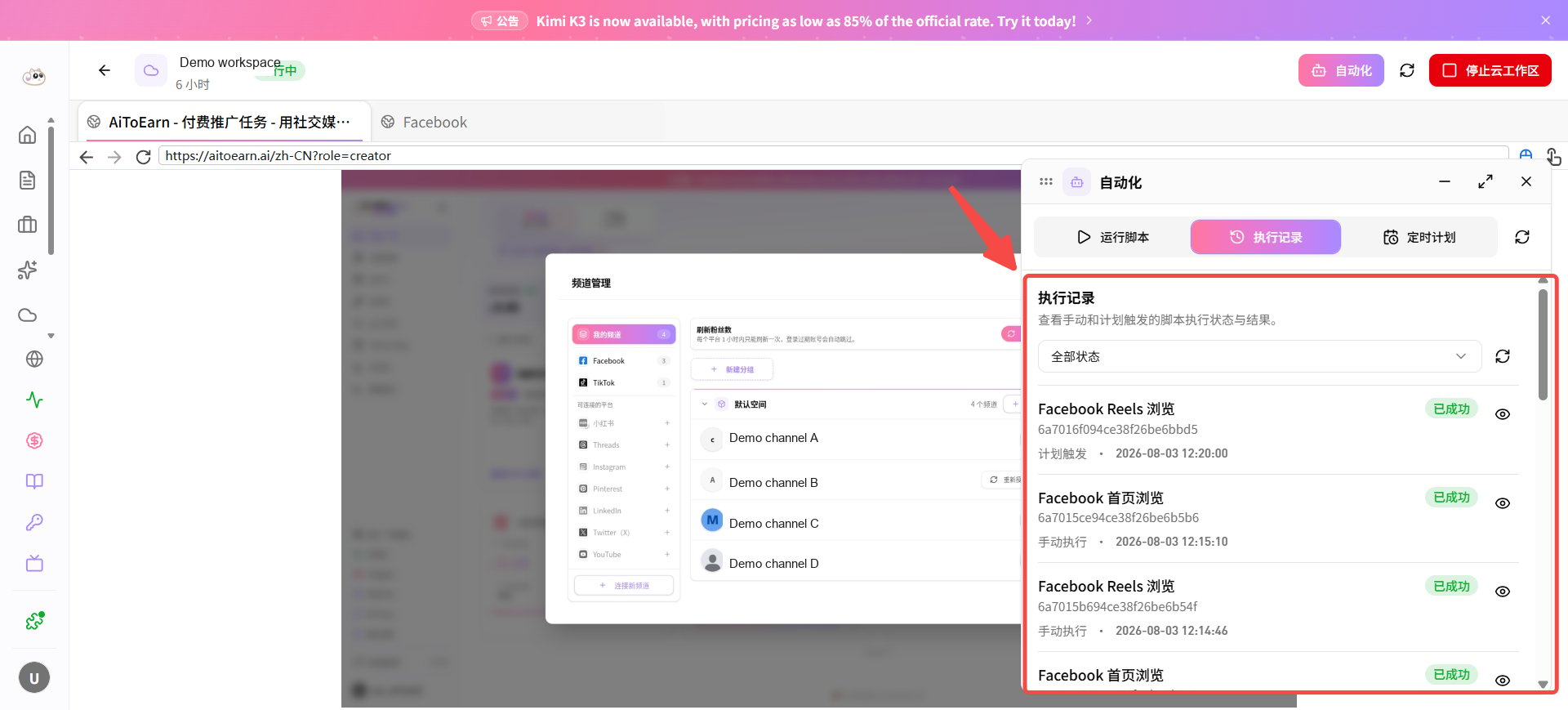
- in the early stage, focus on normal browsing and completing the profile; do not suddenly perform large batches of actions;
- do not let the account switch frequently between workspaces or proxies;
- if a security check appears, complete it in the original workspace first;
- for detailed operation requirements, see the Facebook Account Operation Guide.
Using the Fingerprint Browser
Cloud Workspace saves the browser environment used by each account. To keep the environment stable, follow these principles:- one account per workspace; different accounts never share the same environment;
- always open the same account from its own workspace;
- do not frequently change the proxy, time zone, or language;
- when operating multiple accounts, divide workspaces by account first, then sign in separately;
- stop the workspace when finished, and start the same workspace again next time.