
Important Notes
- Keep promotional content for the period specified on the task page. Deleting it during the retention period may affect settlement.
- Keep likes, saves, comments, follows, and other required actions active for the specified period. Reversing them early may affect settlement.
- The platform counts only authentic, natural, and task-related valid actions.
- Complete identity verification on RedNote and other platforms when recommended to reduce account restrictions.
Promotion Task Guide
-
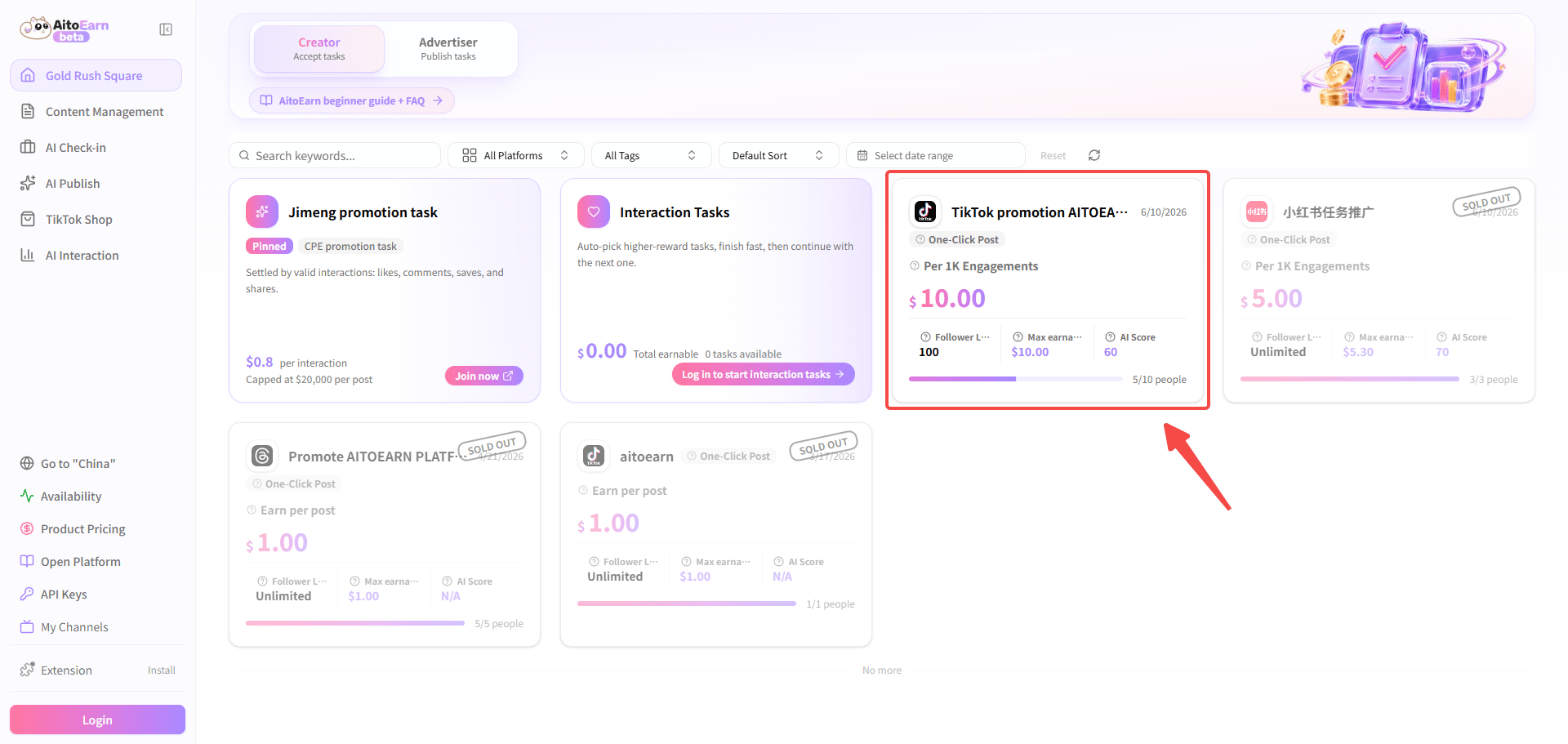
Open the Task Marketplace and select a promotion task.
-
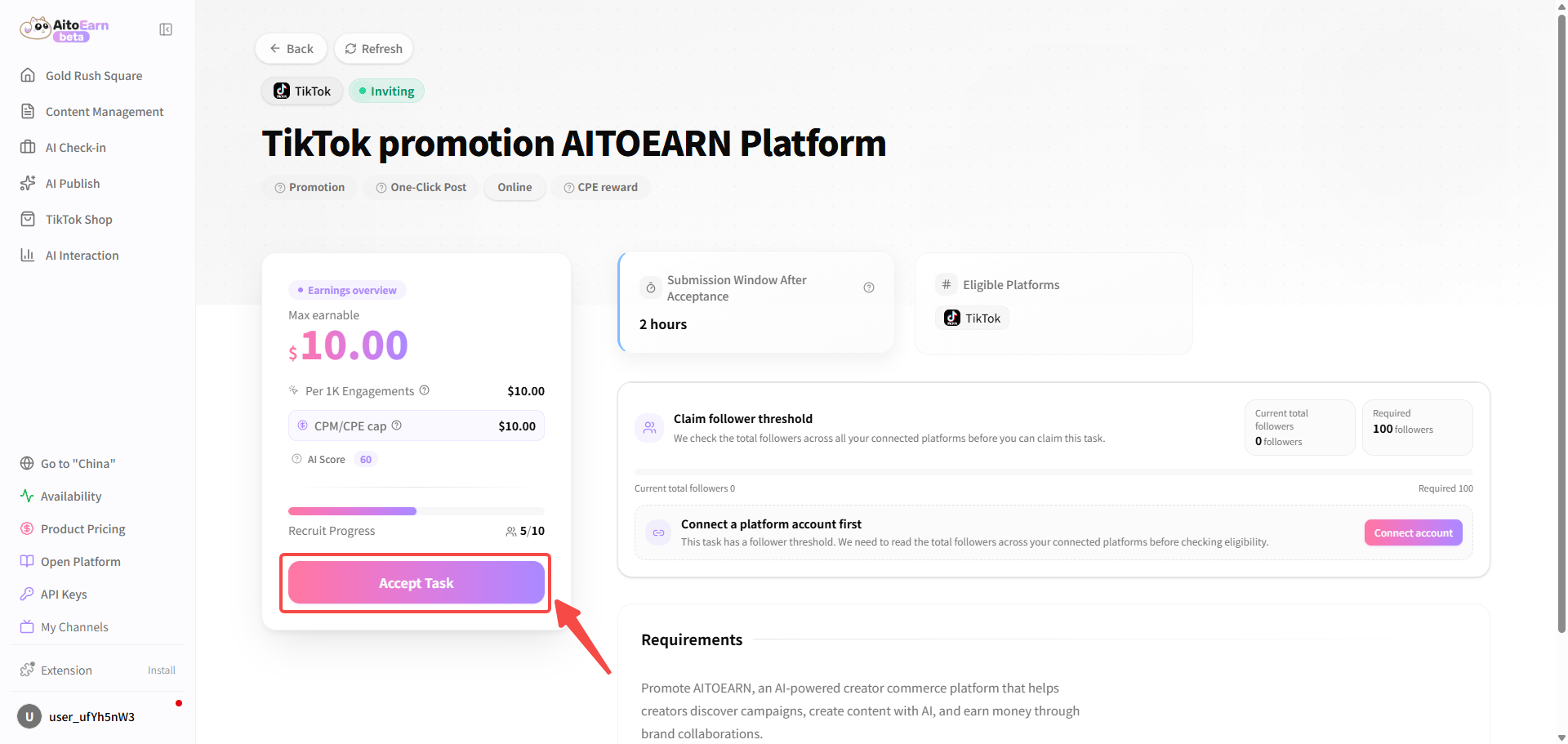
Review the platform, content requirements, reward rules, and retention period. Confirm whether the task uses a recommended draft or original content.
-
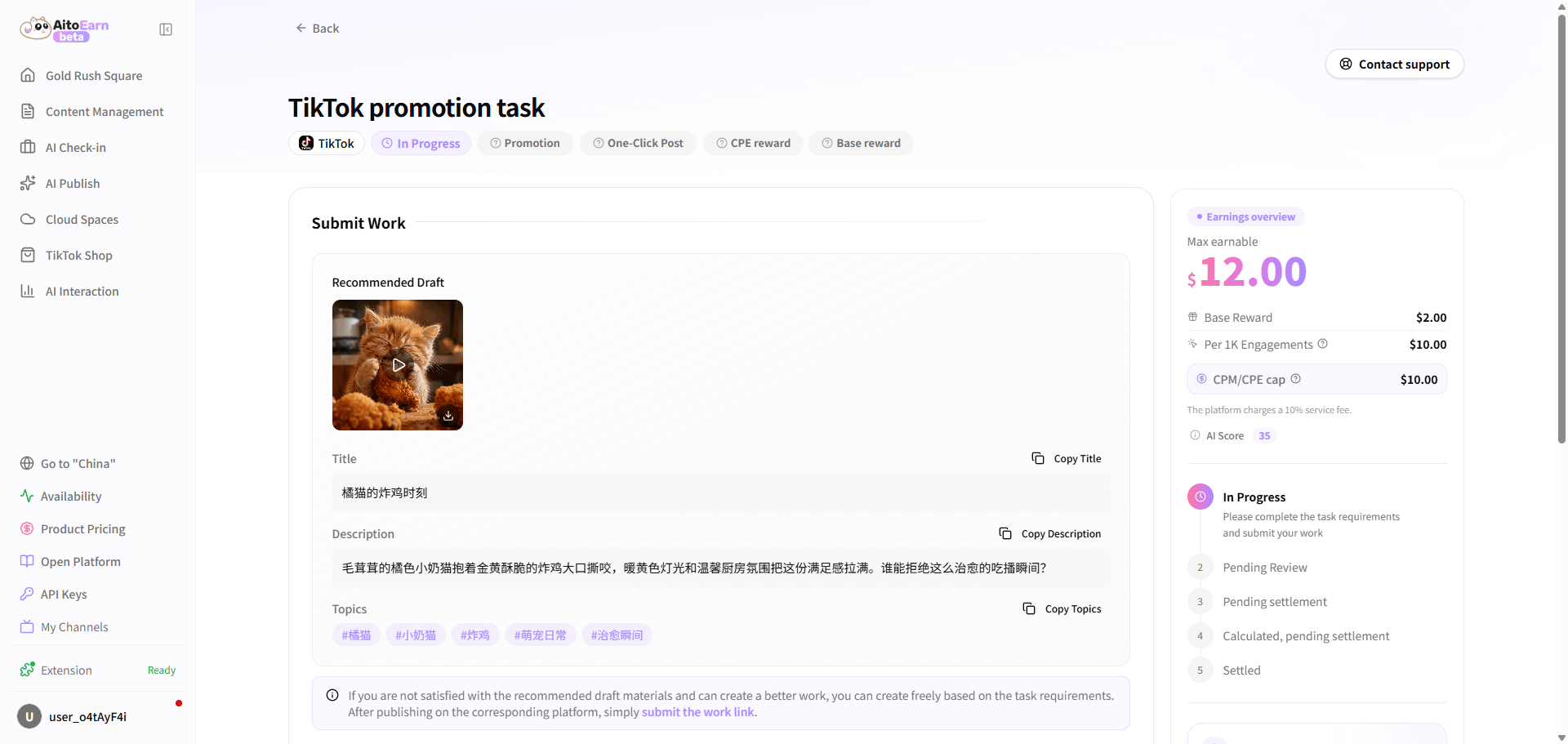
Publish before the submission deadline. You can connect a platform account for one-click publishing, or publish by scanning the QR code and then submit the post link.
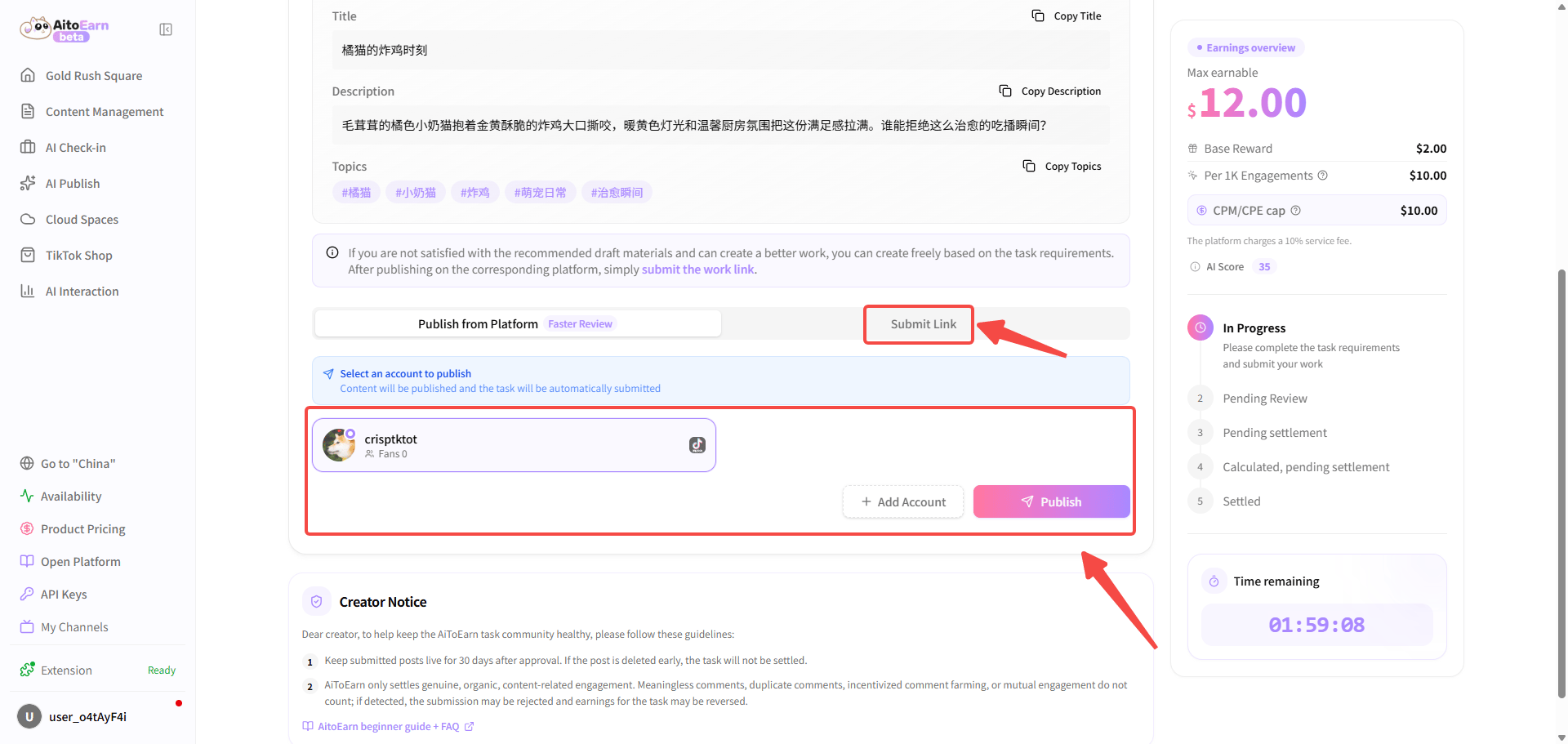
-
Keep the content for the required period and wait for data collection and settlement.
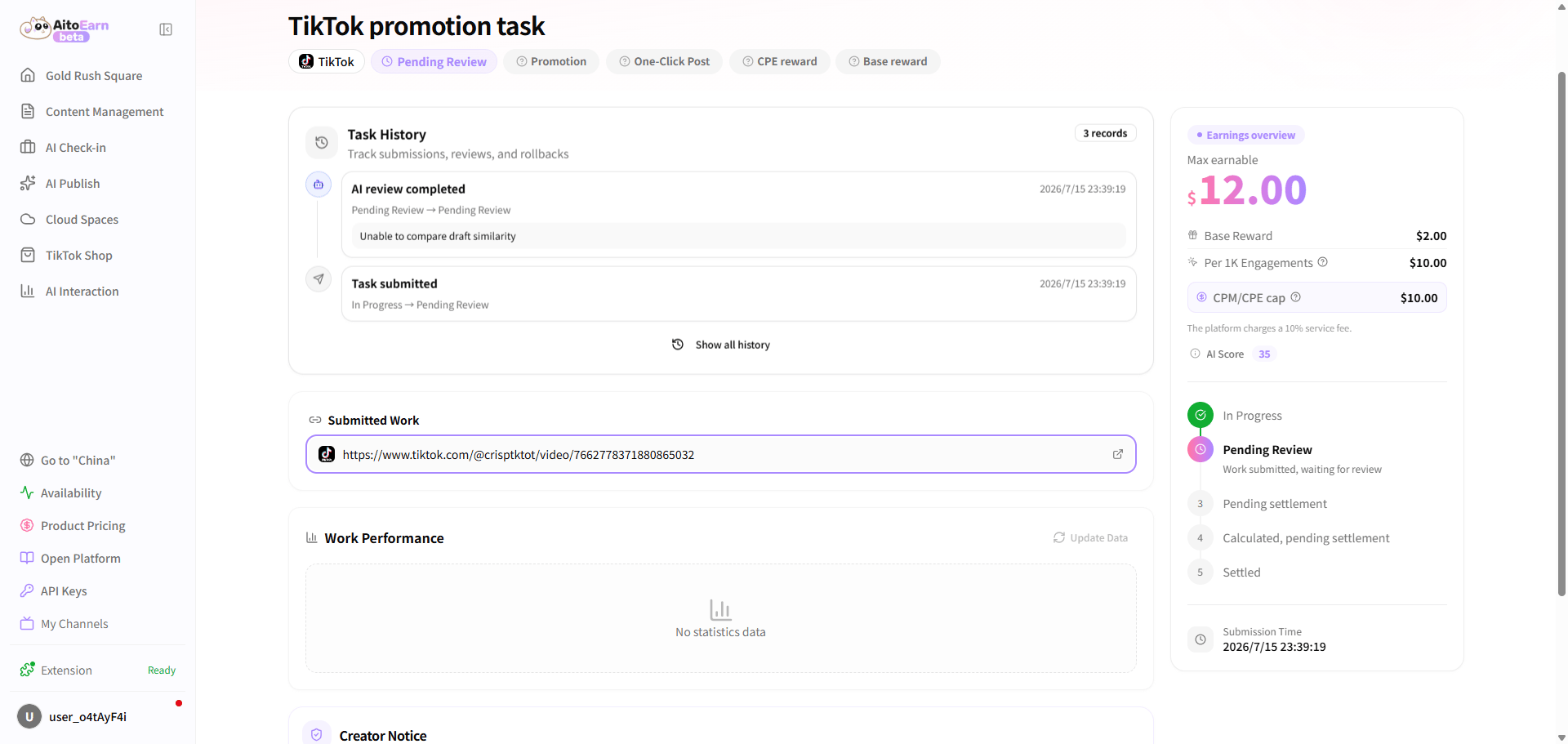
Engagement Task Guide
-
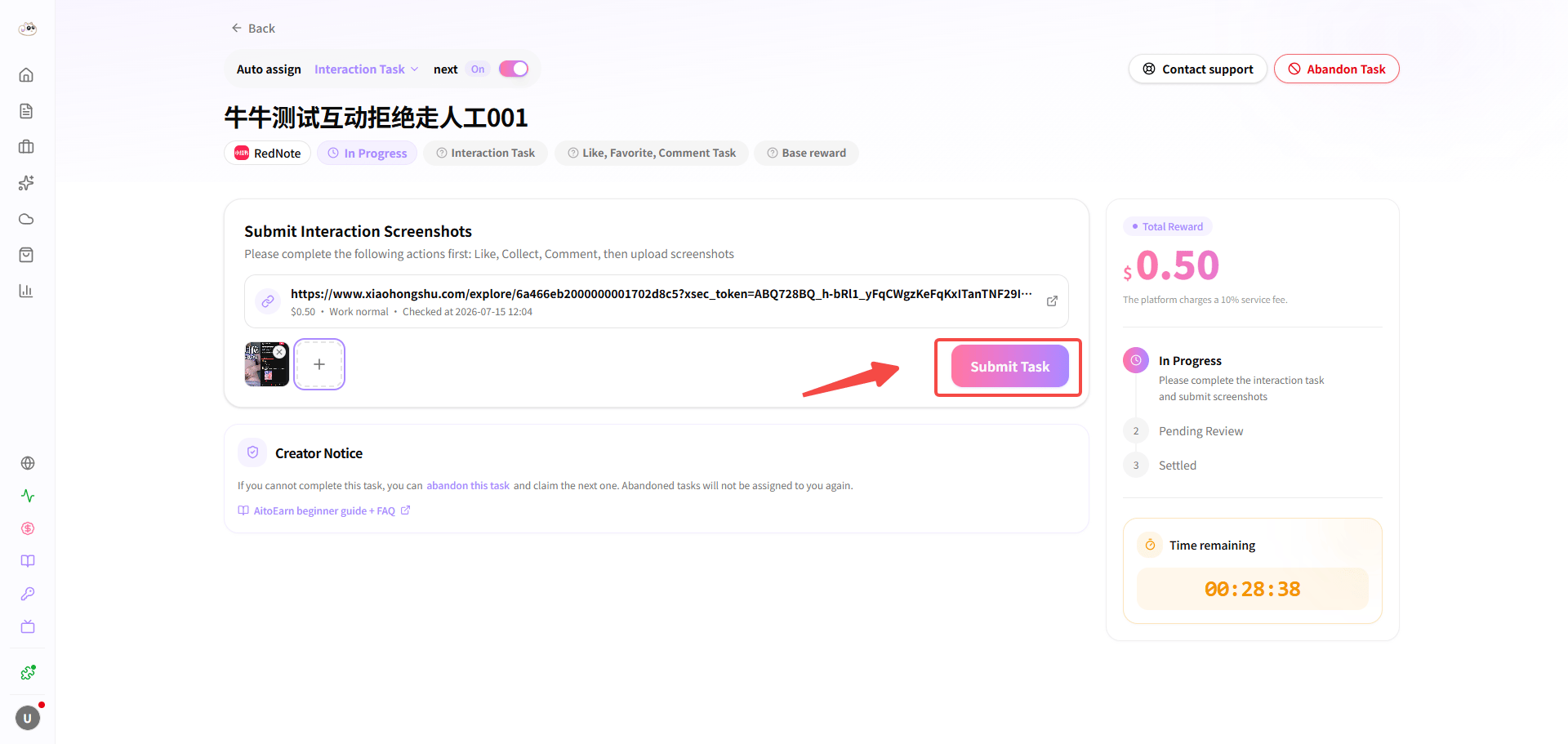
Open the Task Marketplace, select an engagement task, and take the next task from the engagement card.
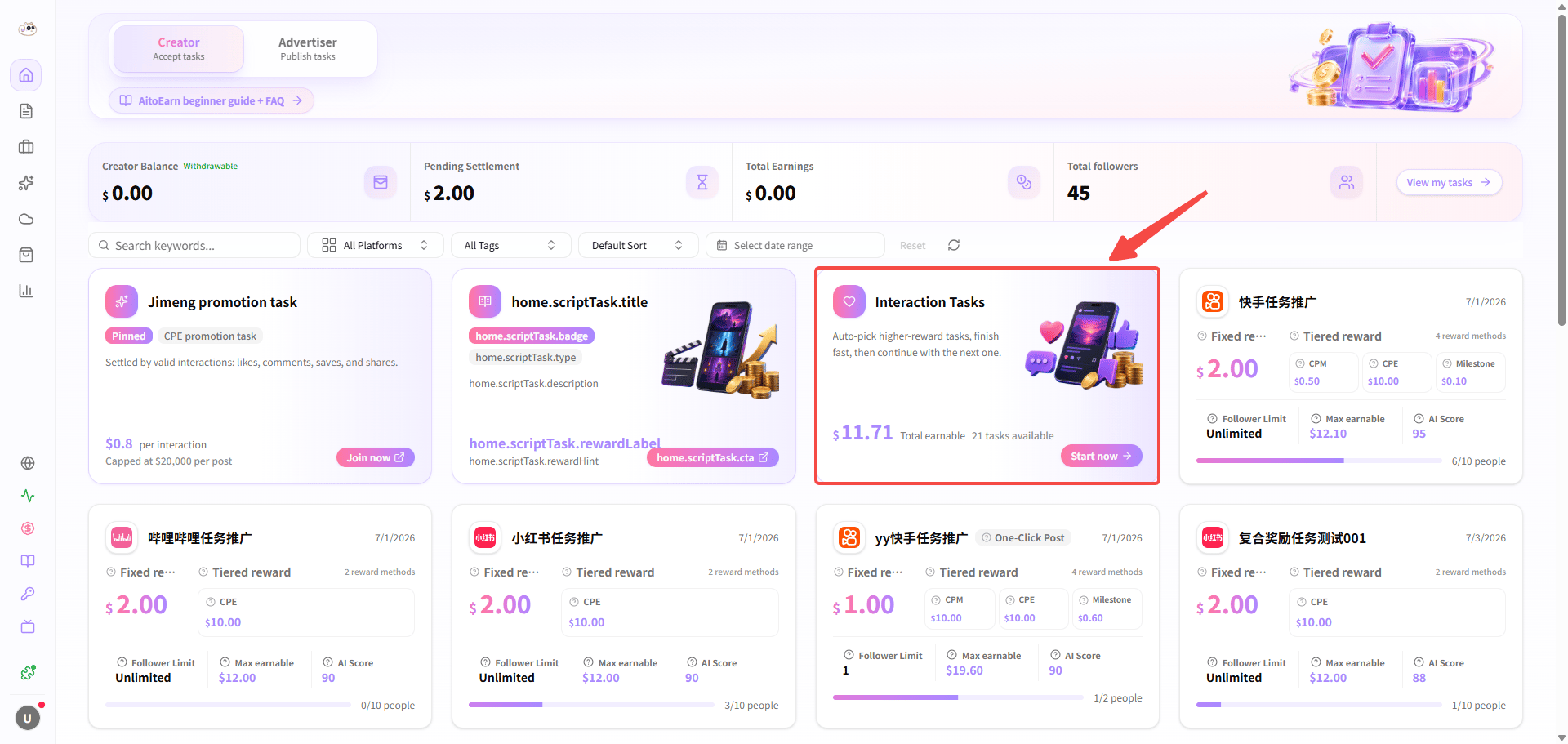
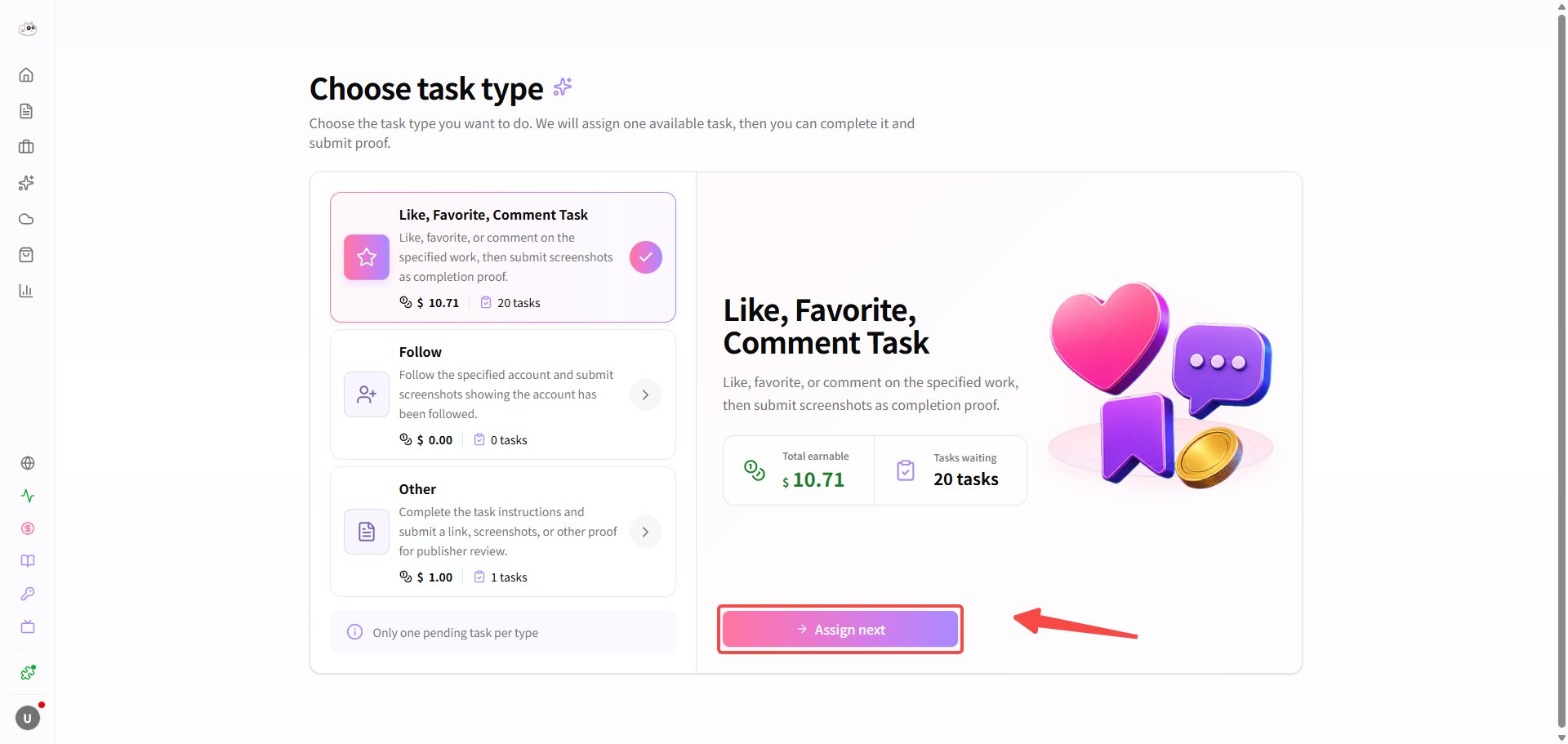
-
Complete the required engagement before the submission deadline and upload a screenshot as proof.
-
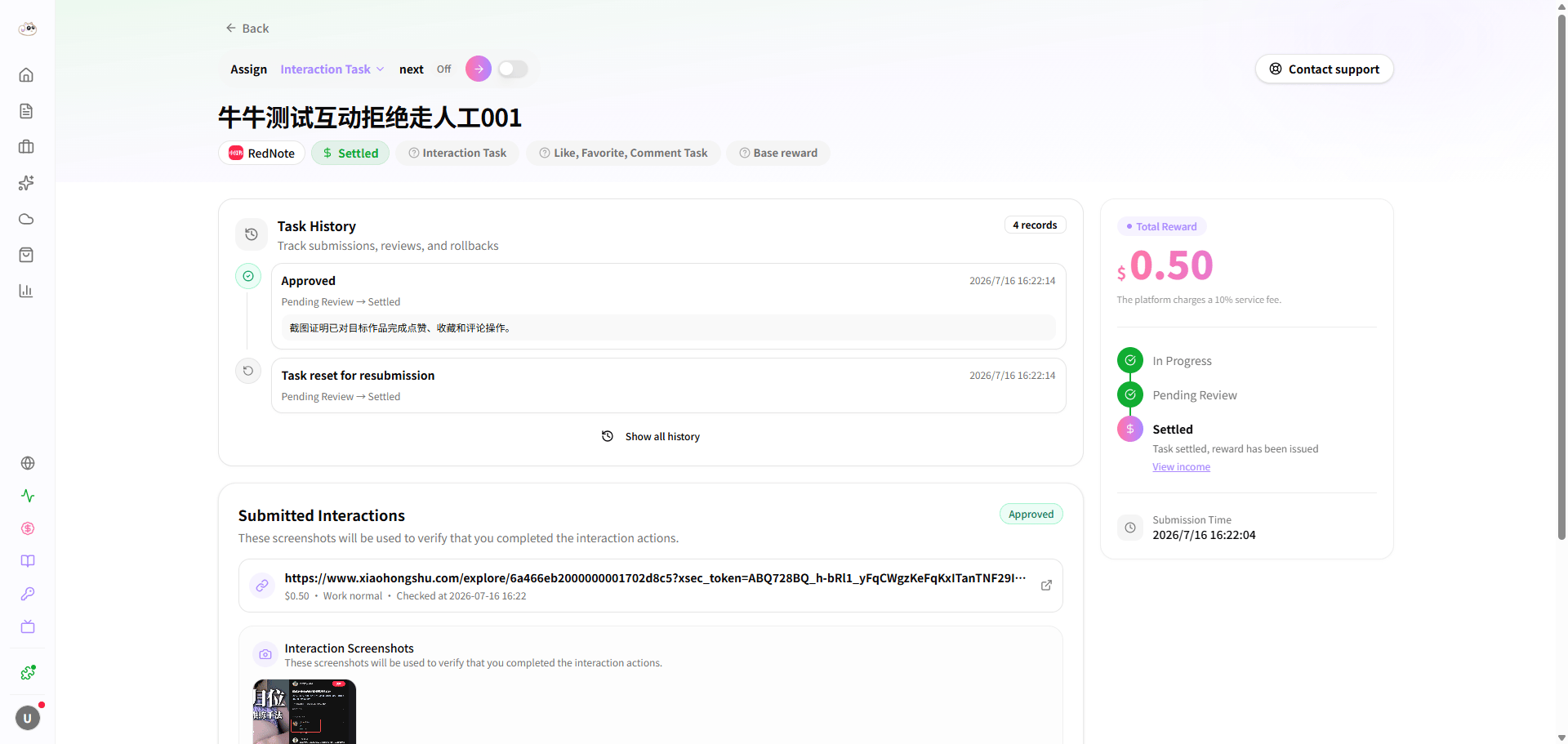
Keep the engagement active for the required period and wait for data collection and settlement.
Follow Task Guide
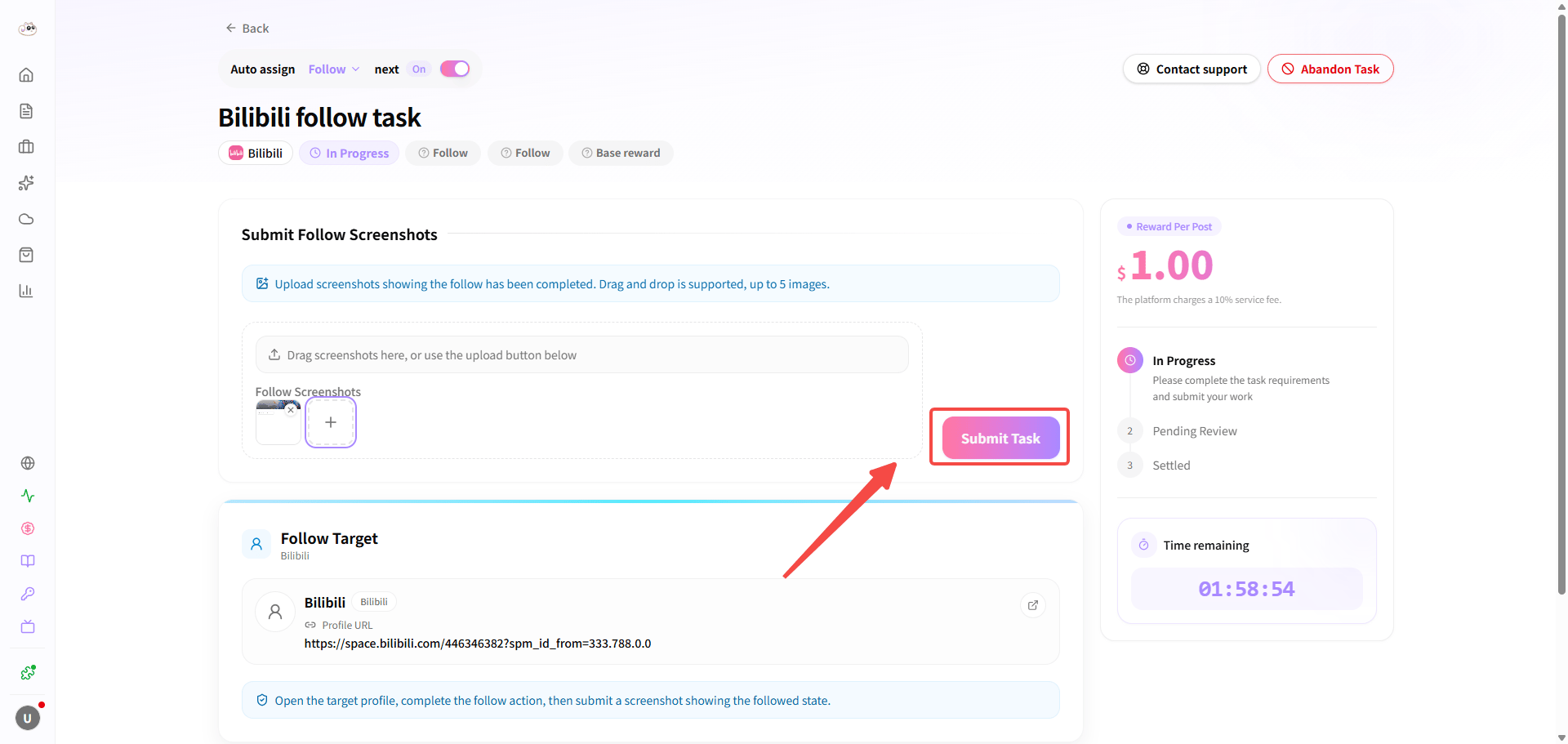
- Open the Task Marketplace, select an engagement task, and take the next task from the follow card.
-
Follow the specified account before the submission deadline and upload a screenshot as proof.
-
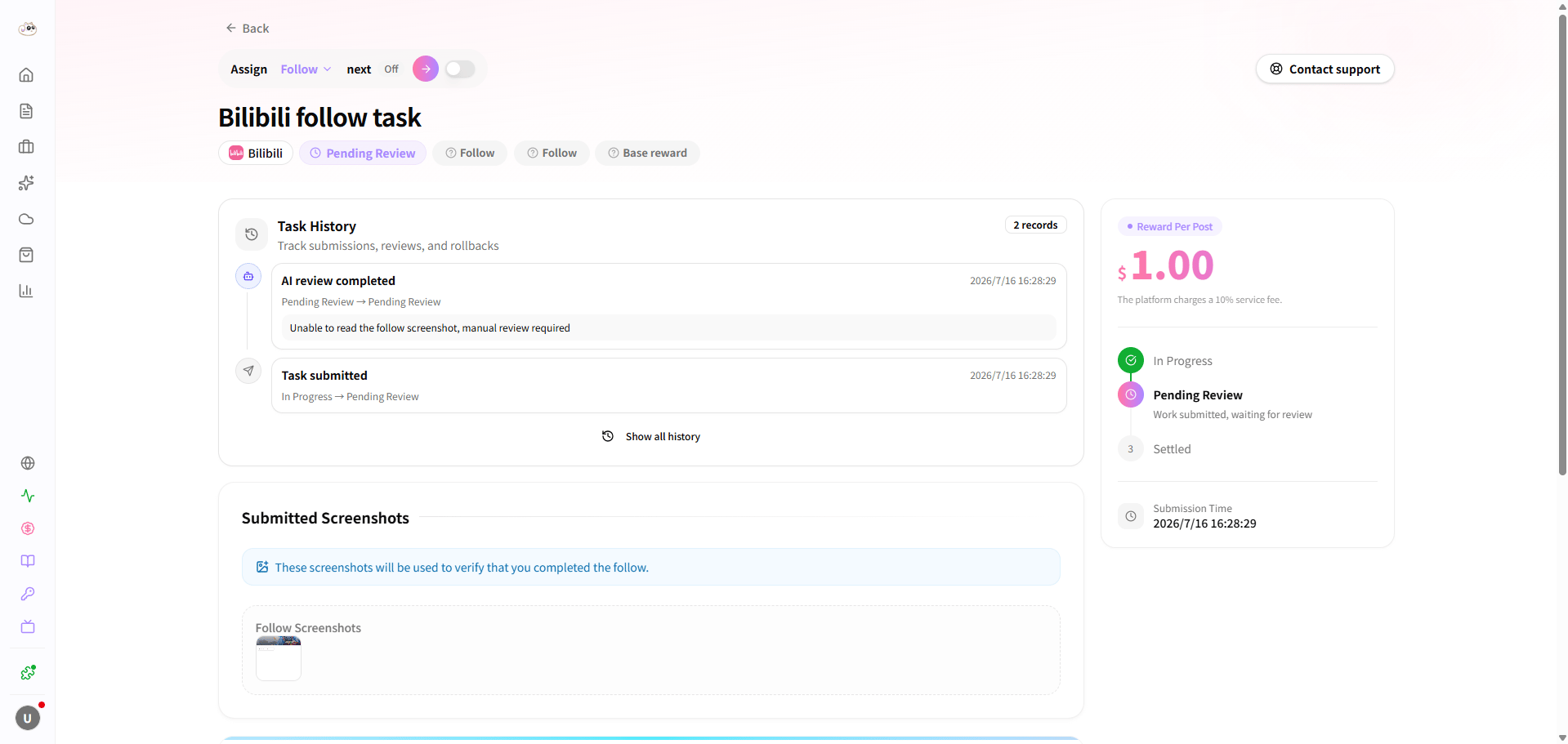
Keep following the account for the required period and wait for data collection and settlement.
Other Task Guide
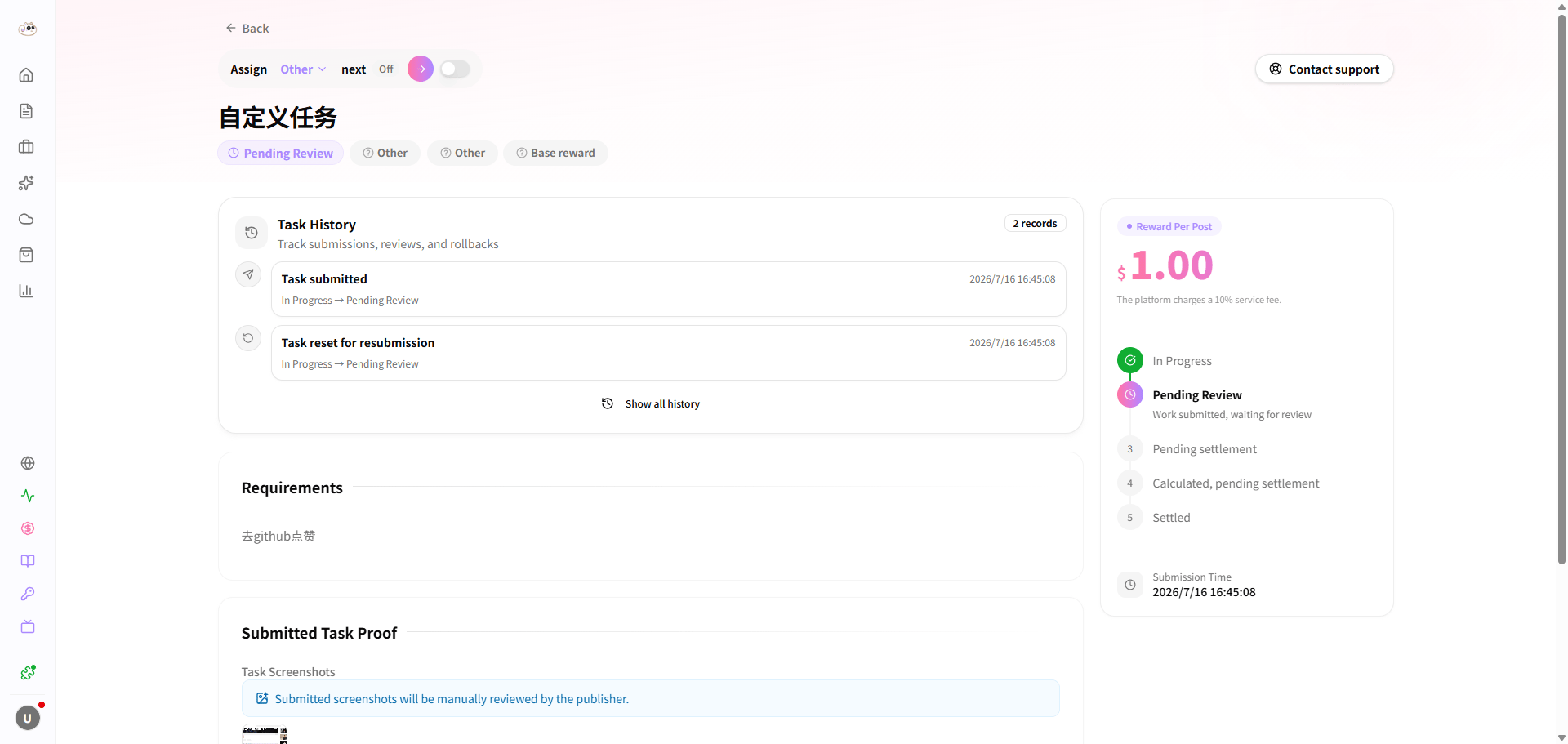
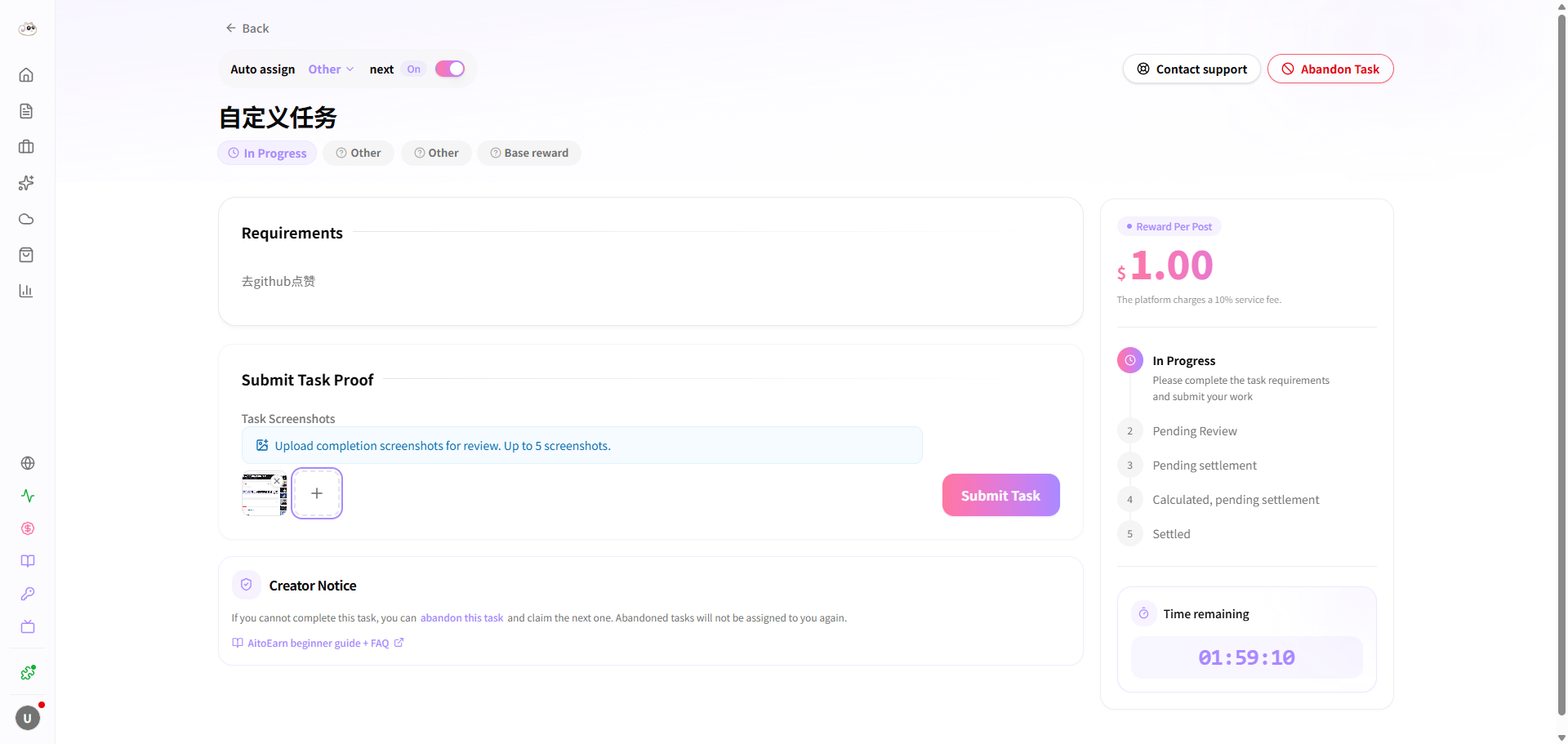
- Open the Task Marketplace, select Other, and take the next task from the task card.
-
Complete the task before the submission deadline and upload the required proof.
-
Keep the task result for the required period and wait for data collection and settlement.