Important Notes
- Define the goal first: exposure, engagement, followers, comment feedback, or lead generation.
- Clear requirements help creators execute accurately and improve the likelihood of achieving the expected result.
- Set a reasonable maximum payout for CPM and CPE tasks to control campaign costs.
Promotion Task Guide
Use promotion tasks to promote a platform, product, campaign, or piece of content and gain exposure, visits, and potential customers.-
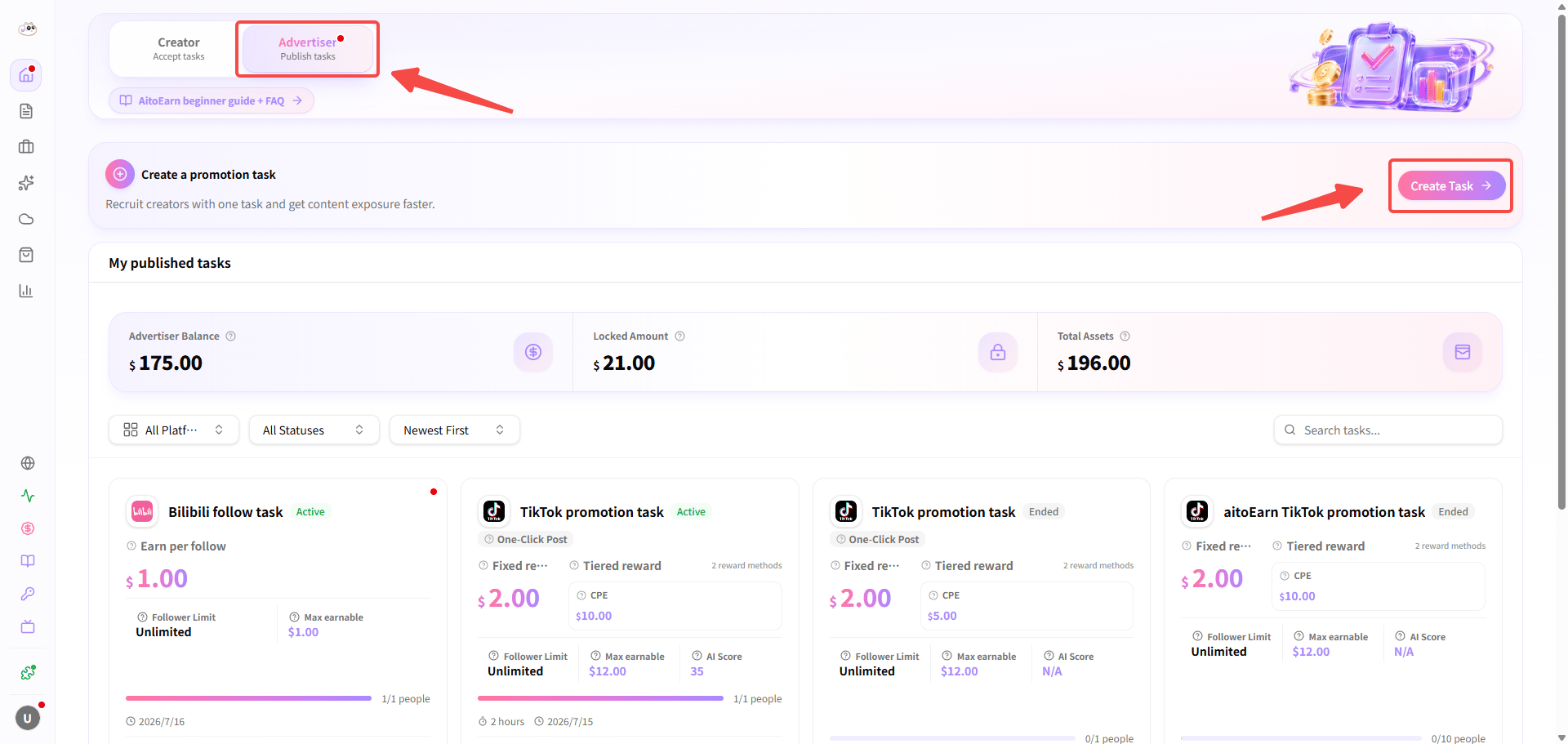
Open the Task Marketplace, switch to the advertiser role, and click Create Task.
-
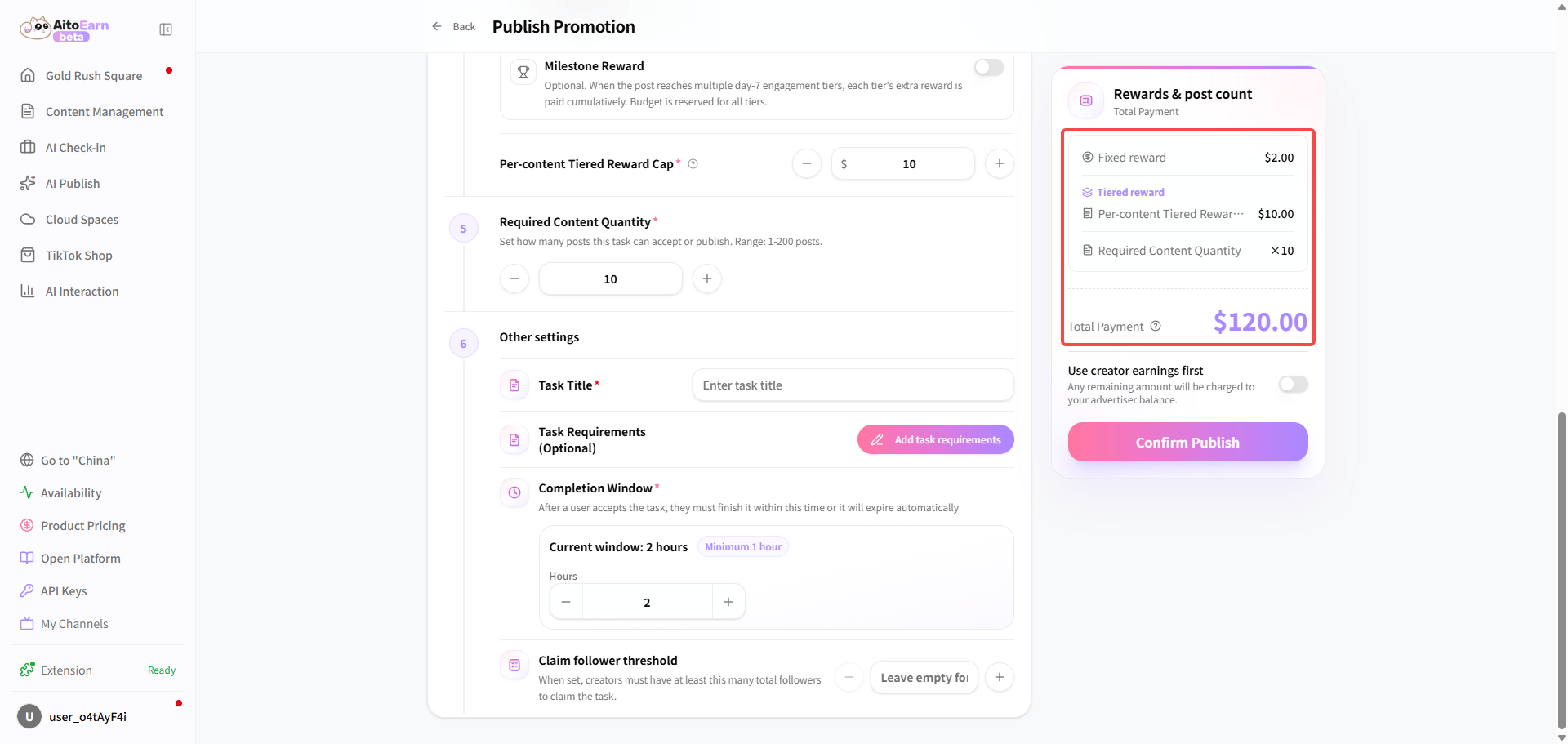
Select a promotion task and configure the platform, content type, price and quantity, task title, and eligibility requirements.
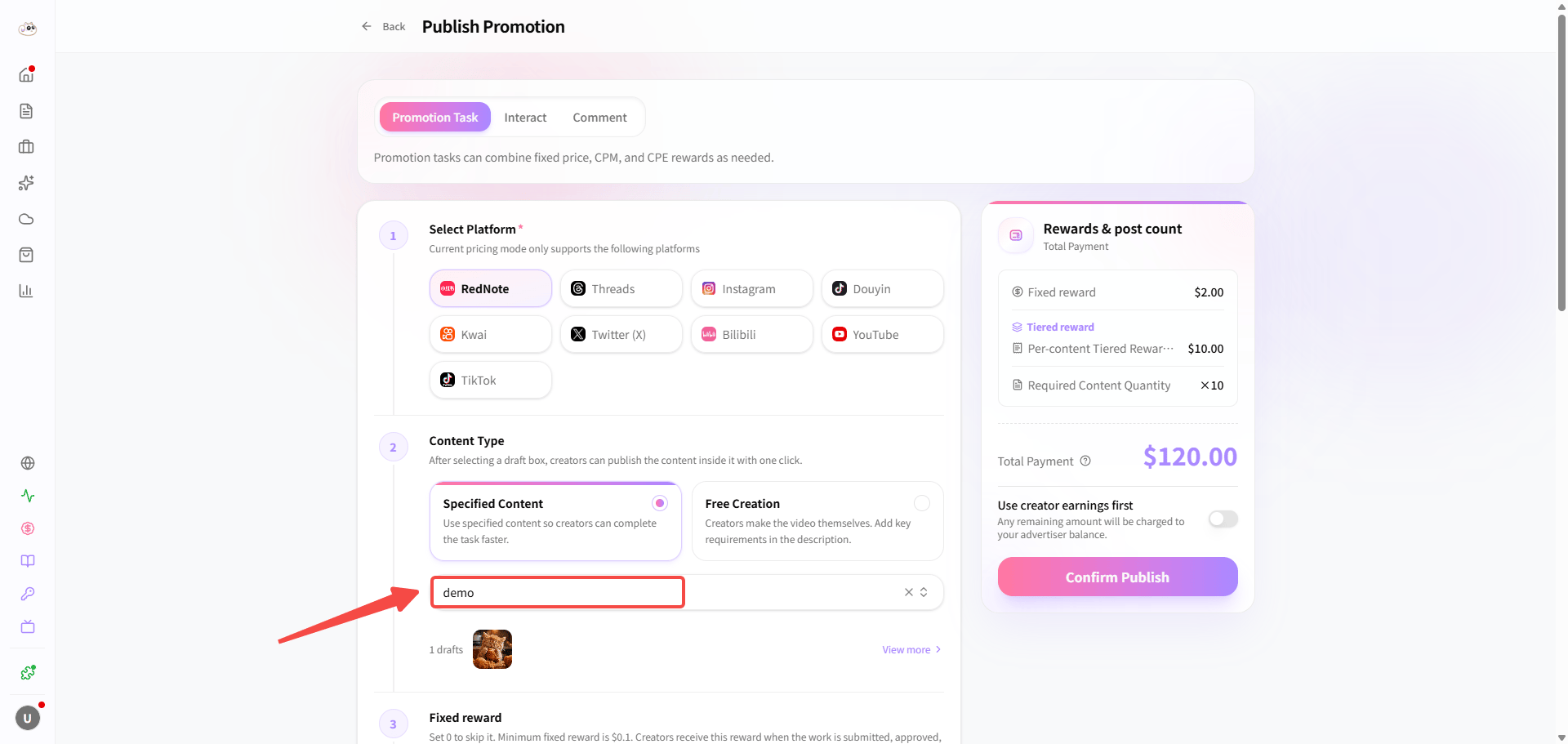
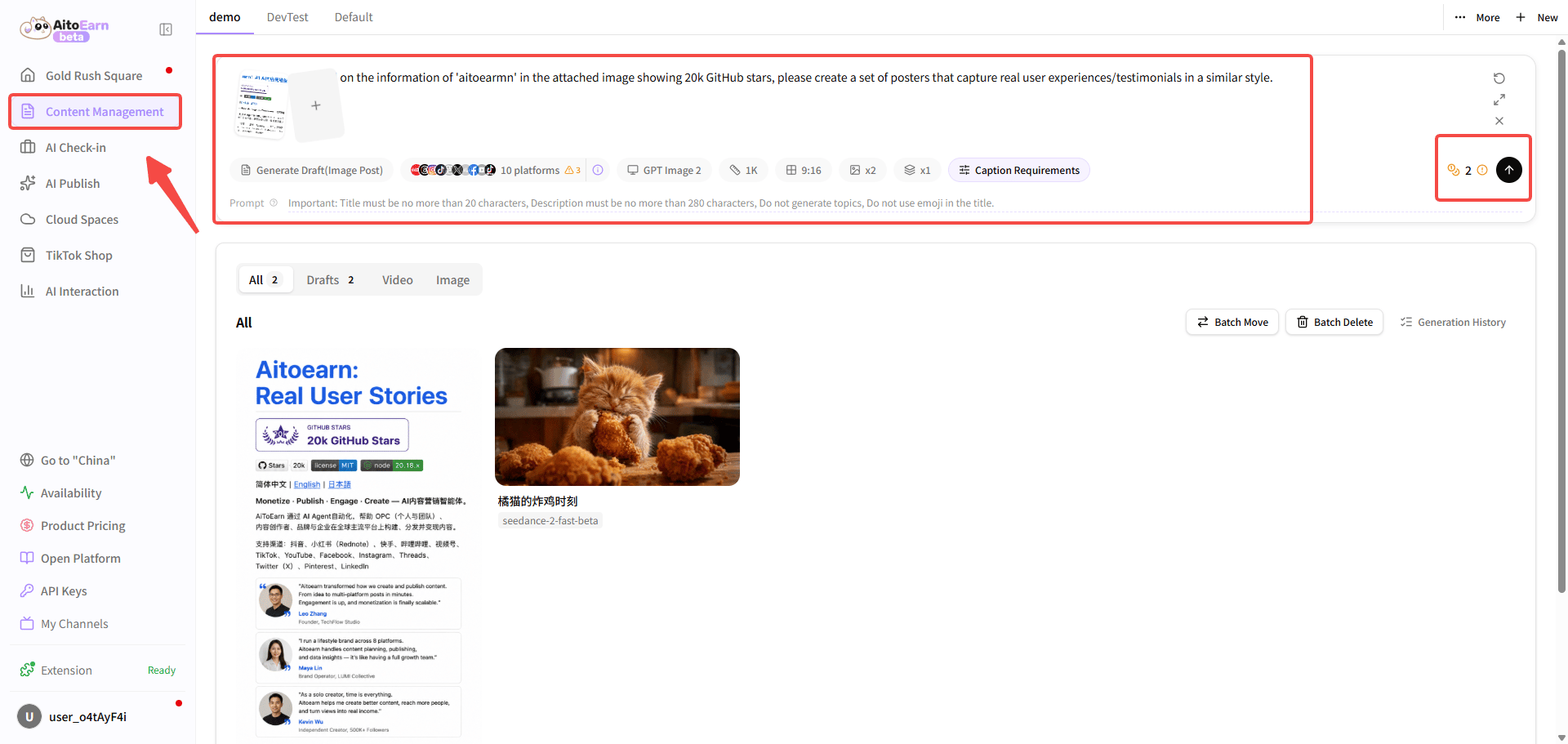
- The content type can be Specified Content or Original Content. For specified content, first create drafts from Content Management. The example below uses an image-and-text draft. After generating it, select the corresponding draft folder in the task.
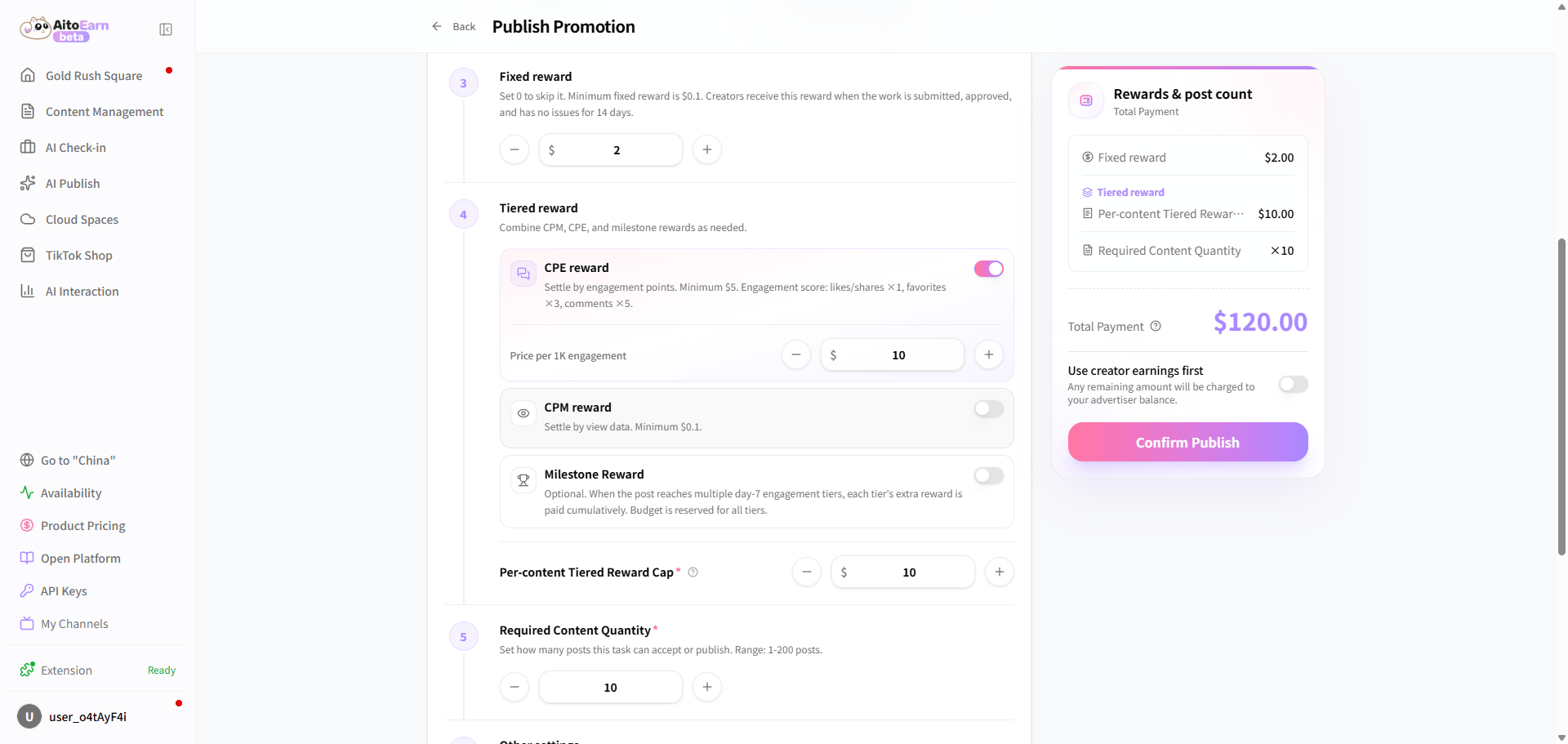
- Set the task budget, confirm the details, and click Publish.
-
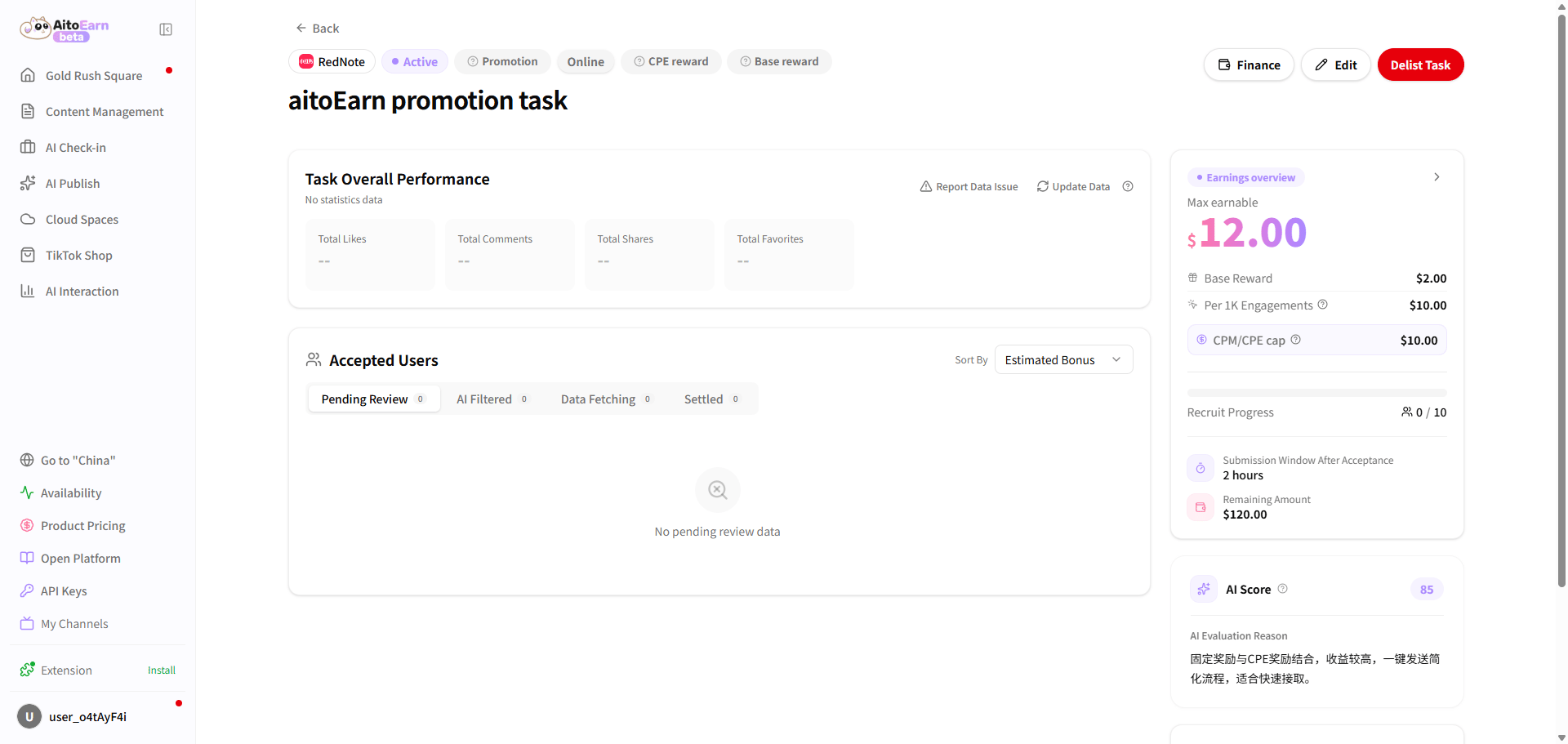
After publishing, open the task card to review completion and promotion quality. You can also edit or unpublish the task.
Like, Save, and Comment Task Guide
Use these tasks to increase likes, saves, shares, and other engagement on specified content so it is more likely to reach the target audience.-
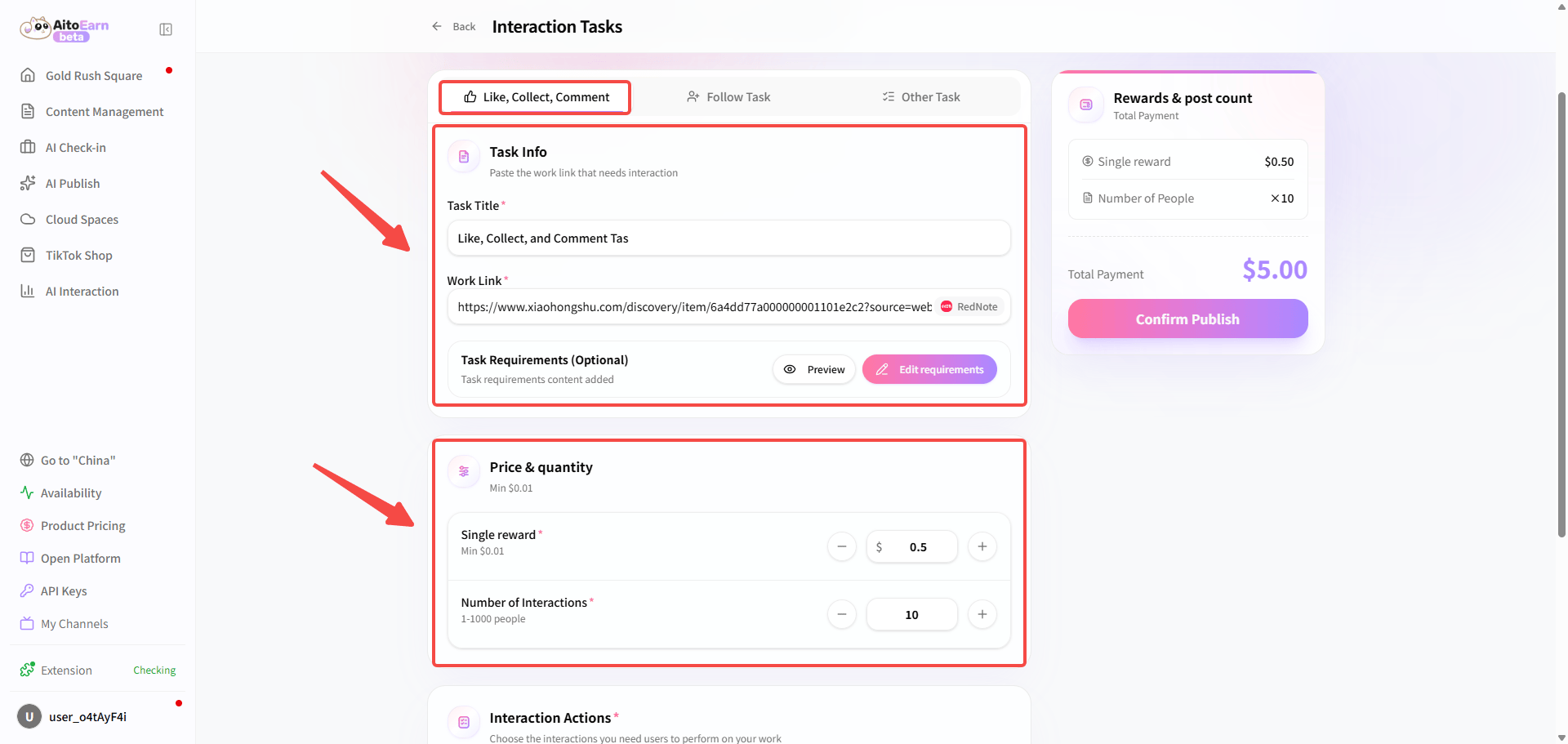
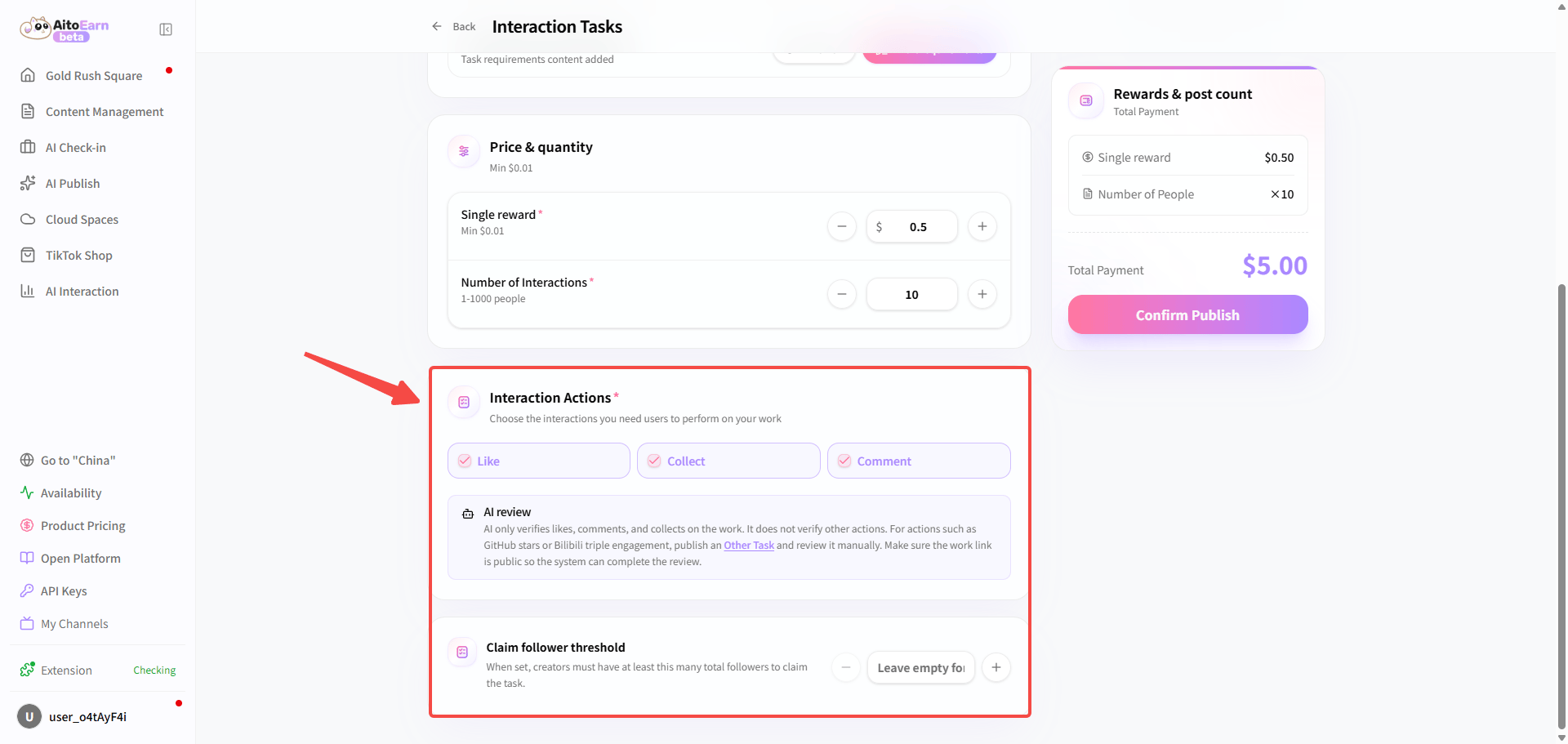
Open the Task Marketplace, switch to the advertiser role, click Create Task, then select the like, save, or comment task under Engagement. Configure the title, post link, requirements, price and quantity, engagement actions, and eligibility requirements.
-
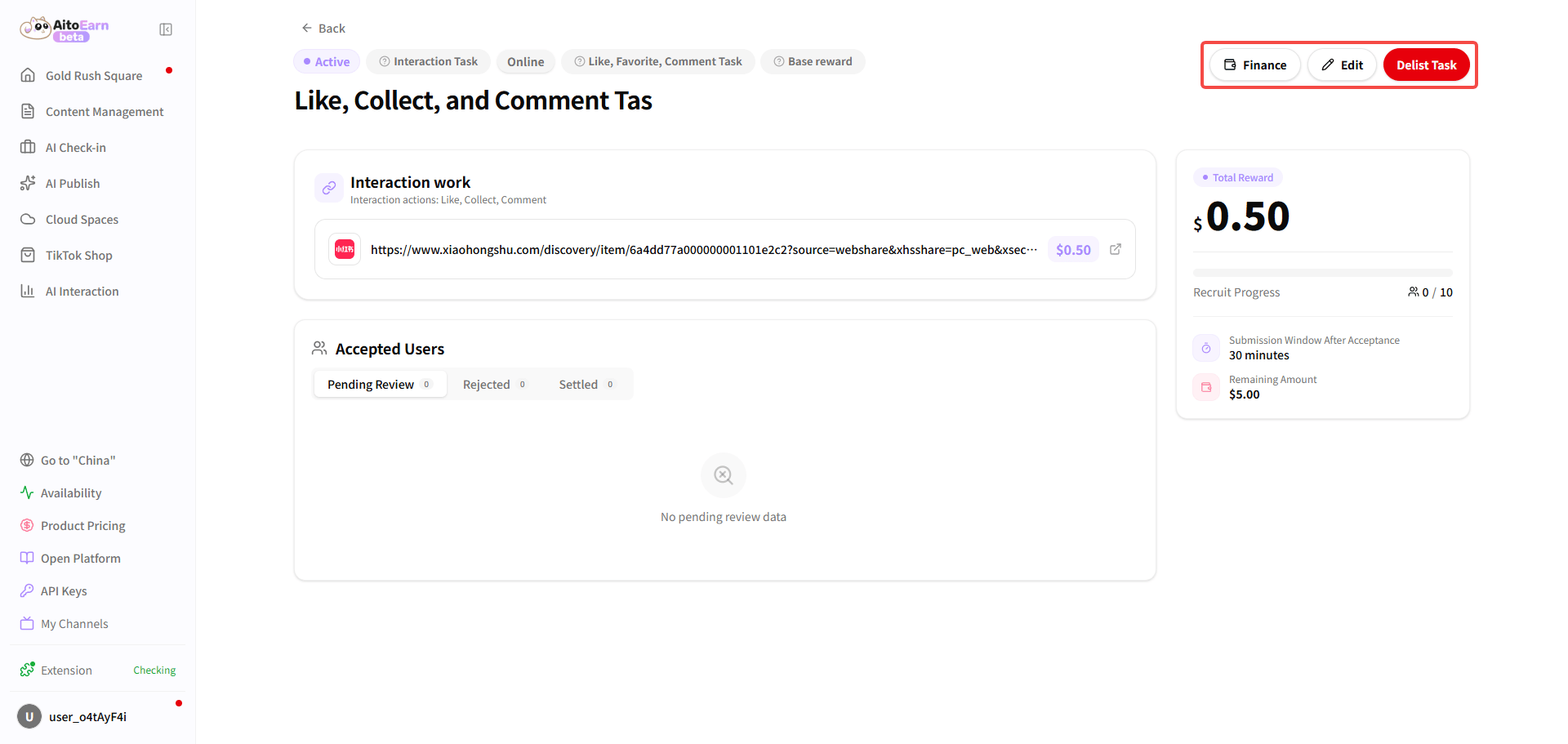
After publishing, open the task card to review completion and engagement quality. You can also edit or unpublish the task.
Follow Task Guide
Use follow tasks to grow an account’s initial audience and support continued contact with potential customers.-
Open the Task Marketplace, switch to the advertiser role, click Create Task, then select Follow under Engagement.
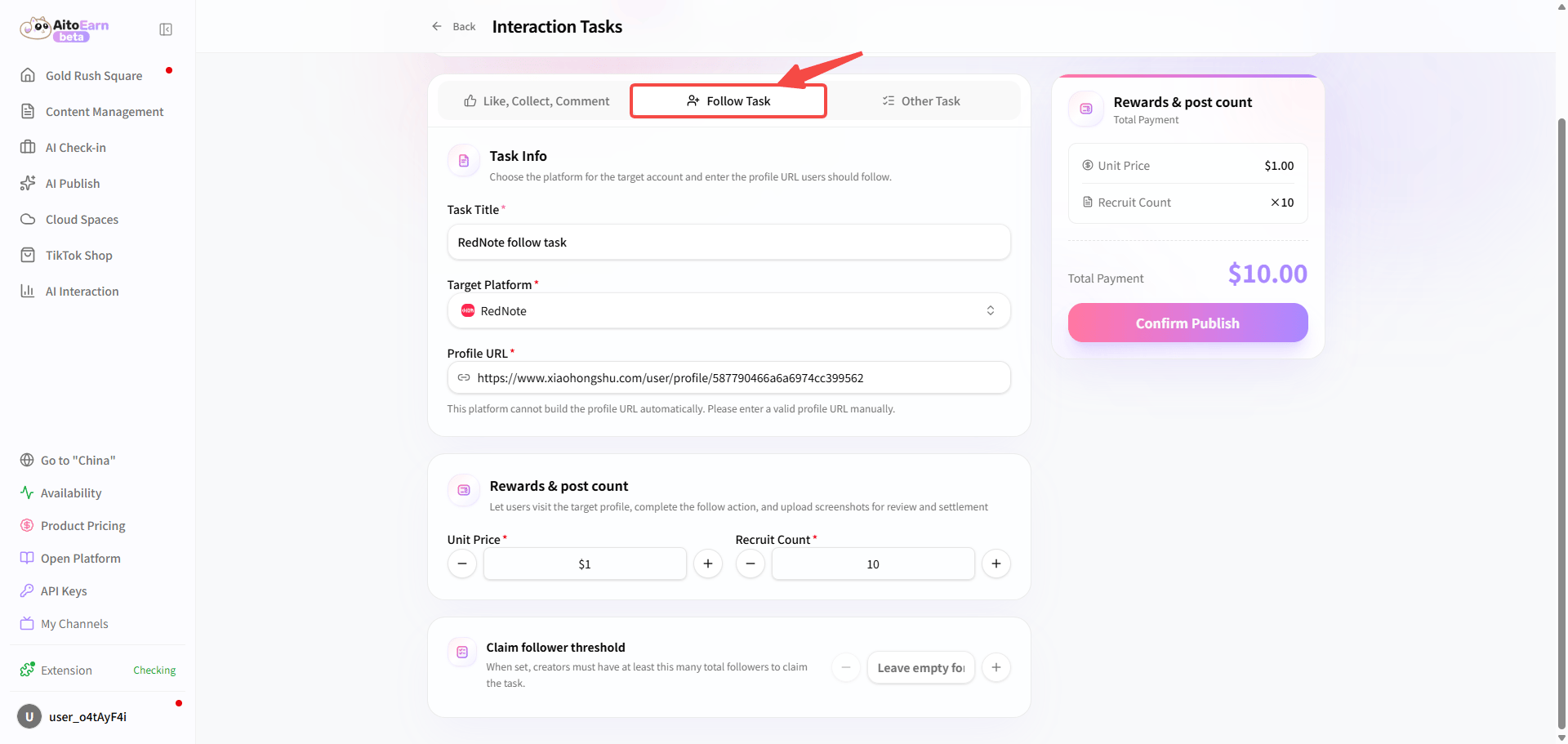
- Set the task title, account link, platform, price and quantity, and eligibility requirements.
-
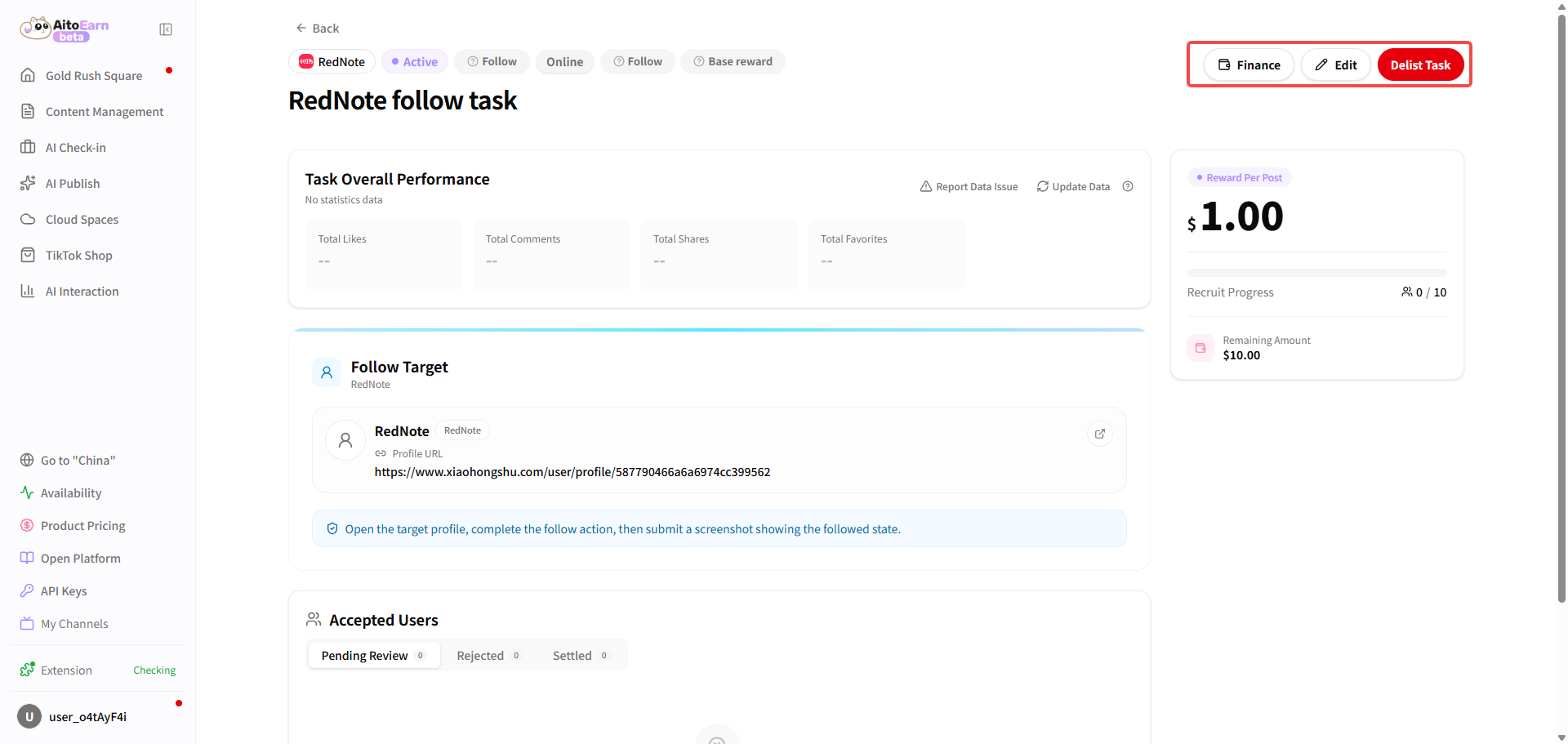
After publishing, open the task card to review completion. You can also edit or unpublish the task.
Other Task Guide
Use other tasks for custom actions such as form submissions, product trials, feedback, or joining a community.-
Open the Task Marketplace, switch to the advertiser role, click Create Task, then select Other under Engagement.
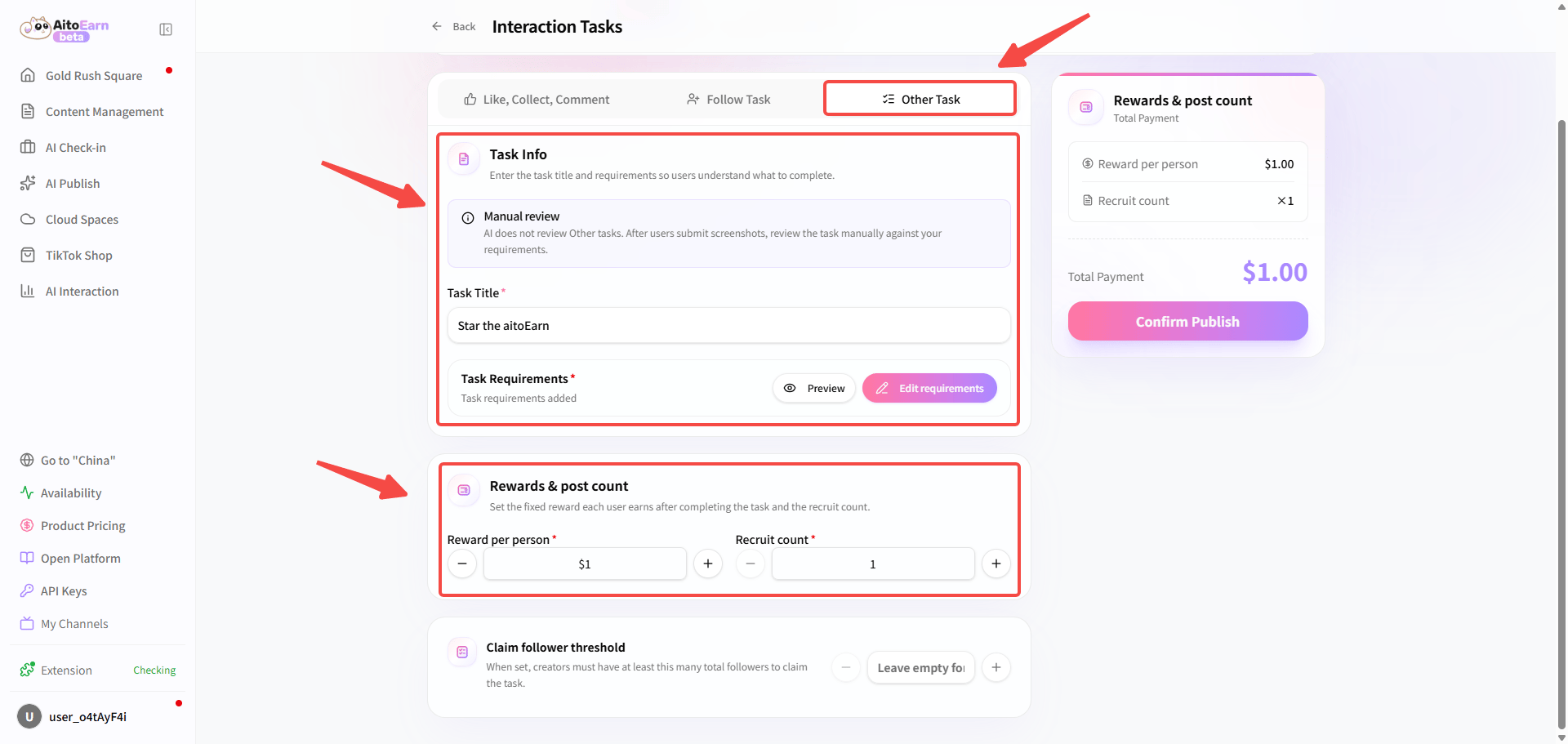
- Set the task title, requirements, price and quantity, and eligibility requirements.
-
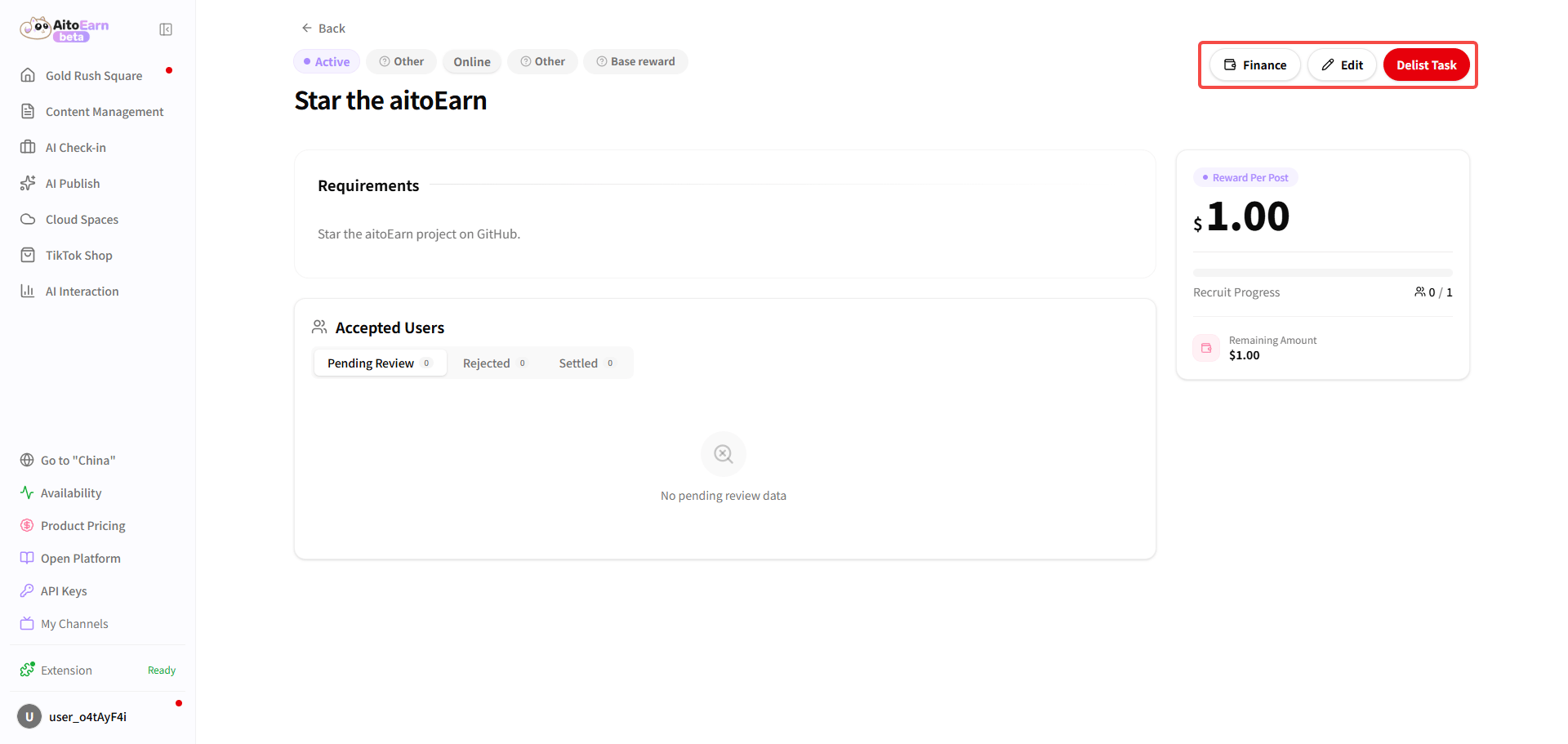
After publishing, open the task card to review completion. You can also edit or unpublish the task.
Comment Task Guide
Comment tasks are currently available only to Enterprise members. After upgrading, you can create comment tasks that direct users to comment on specified content. Scan the QR code below to contact customer support for more information. Want more enterprise features? Complete the Enterprise User Survey.