> ## Documentation Index
> Fetch the complete documentation index at: https://docs.aitoearn.ai/llms.txt
> Use this file to discover all available pages before exploring further.
# Codex 接入教程
> 通过 cc-switch 将 AiToEarn 对话接口接入 Codex
本文介绍如何使用 cc-switch 把 AiToEarn 的 OpenAI Chat Completions 兼容接口接入 Codex。适用于 Codex 客户端需要 Responses API,而你希望复用 AiToEarn 对话模型能力的场景。
如果你还没有 API Key,请先阅读 [获取 API KEY 教程](/zh/use/api-key)。
API Key 是接口访问凭证。配置、截图或共享排查信息时,请不要暴露完整 API Key。
## 接入前准备
你需要先准备:
1. [AiToEarn API Key](/zh/use/api-key)。
2. 已安装并可正常使用的 Codex。
3. cc-switch。你可以从 [cc-switch releases](https://github.com/farion1231/cc-switch/releases) 下载适合当前系统的版本。
AiToEarn 的 API Key 与站点绑定。国内站 API Key 使用:
```text theme={null}
https://aitoearn.cn/api/ai/chat/completions
```
国际站 API Key 使用:
```text theme={null}
https://aitoearn.ai/api/ai/chat/completions
```
如需确认可用模型名称,请先查看 [对话模型列表](/api-reference/get-api-ai-models-chat)。
## 配置 cc-switch
打开 cc-switch 后,先在顶部切换到 `codex`。
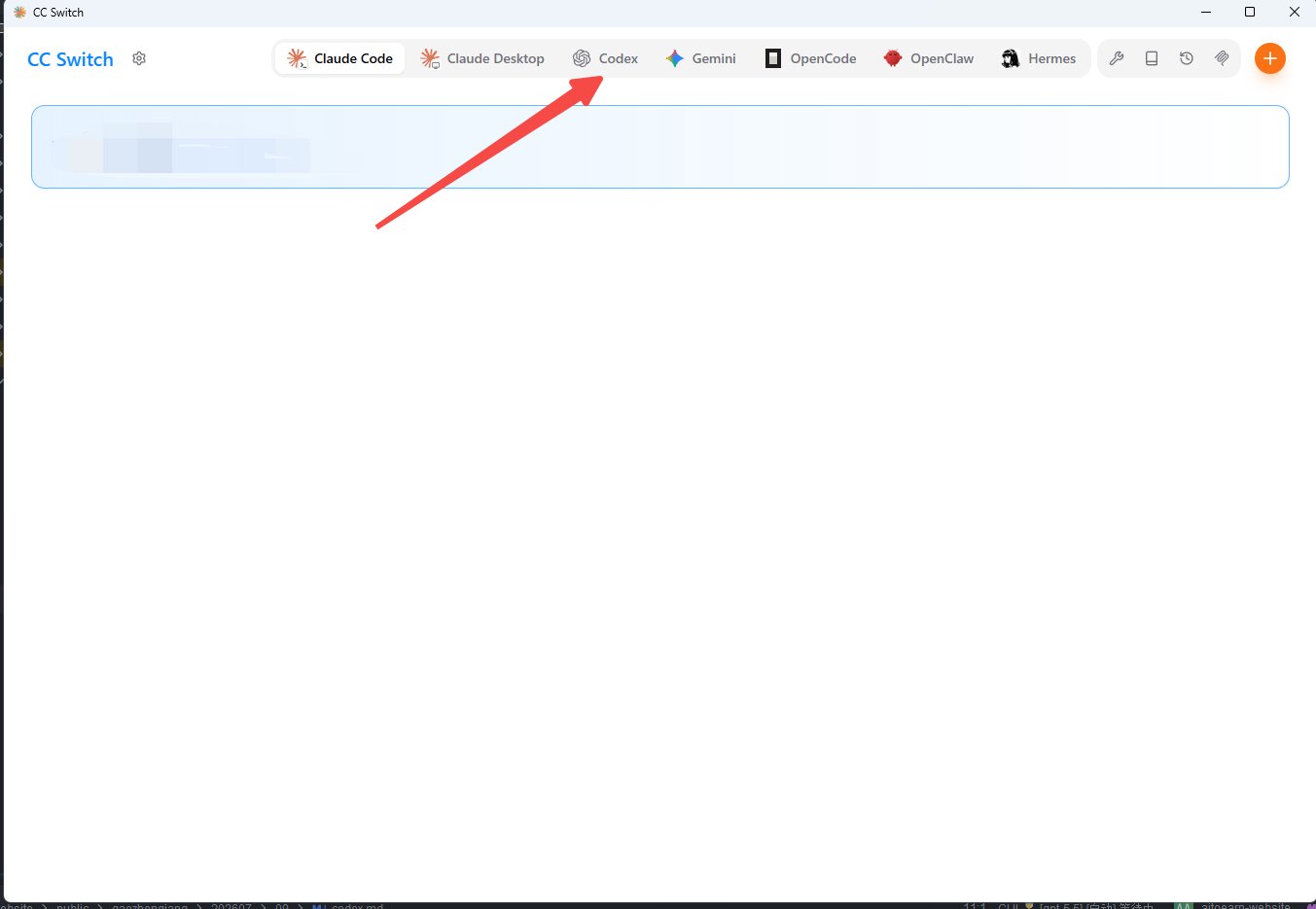 点击新建按钮,开始添加新的供应商配置。
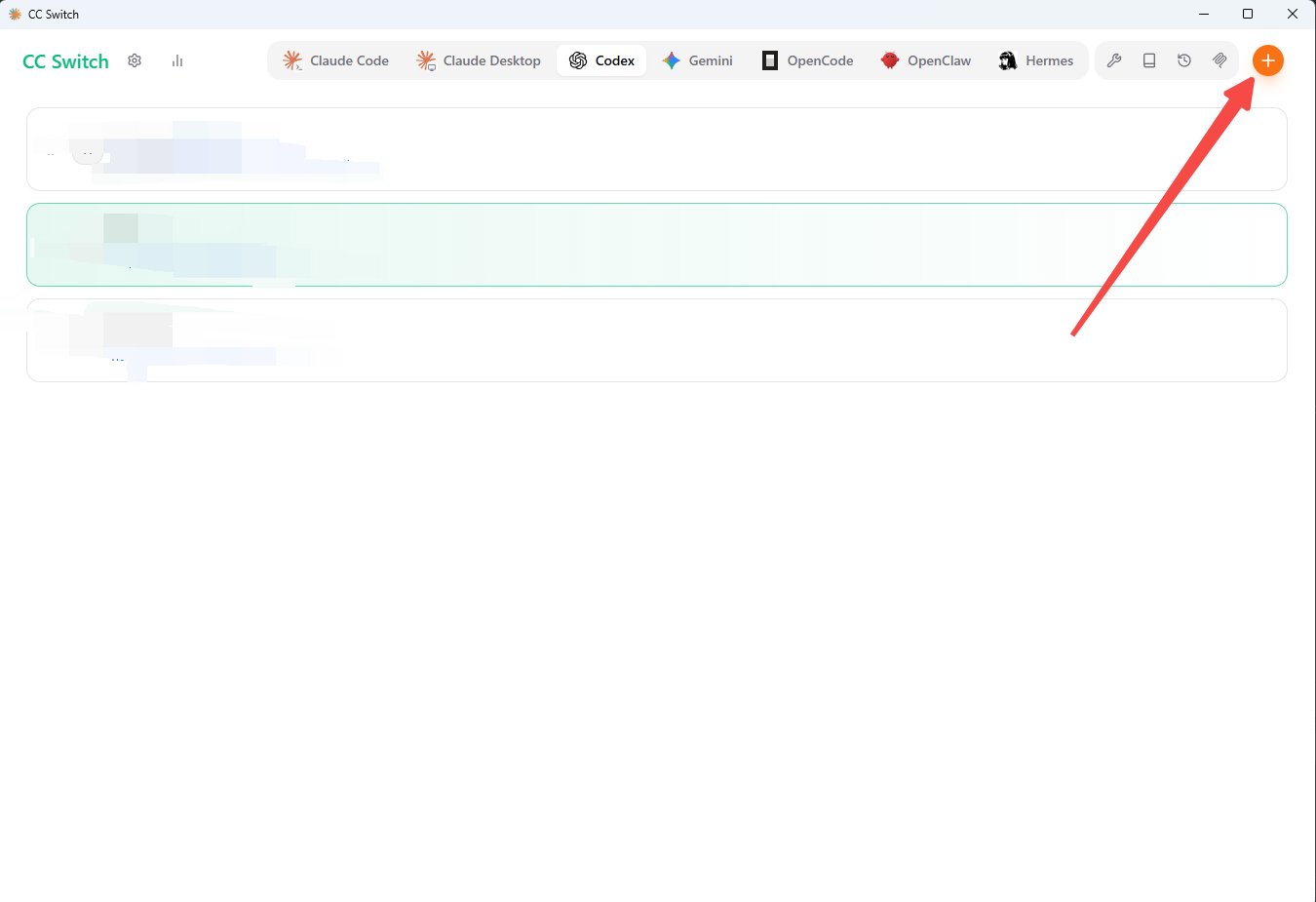 配置类型保持默认的自定义配置即可。向下滚动后填写以下信息:
* 供应商名称:建议填写 `aitoearn`,便于后续识别。
* API Key:填写你在 AiToEarn 创建的 API Key。
* API 请求地址:填写与你的 API Key 所属站点一致的 OpenAI Chat Completions 接口地址。
然后打开高级选项,并开启本地路由映射。
配置类型保持默认的自定义配置即可。向下滚动后填写以下信息:
* 供应商名称:建议填写 `aitoearn`,便于后续识别。
* API Key:填写你在 AiToEarn 创建的 API Key。
* API 请求地址:填写与你的 API Key 所属站点一致的 OpenAI Chat Completions 接口地址。
然后打开高级选项,并开启本地路由映射。
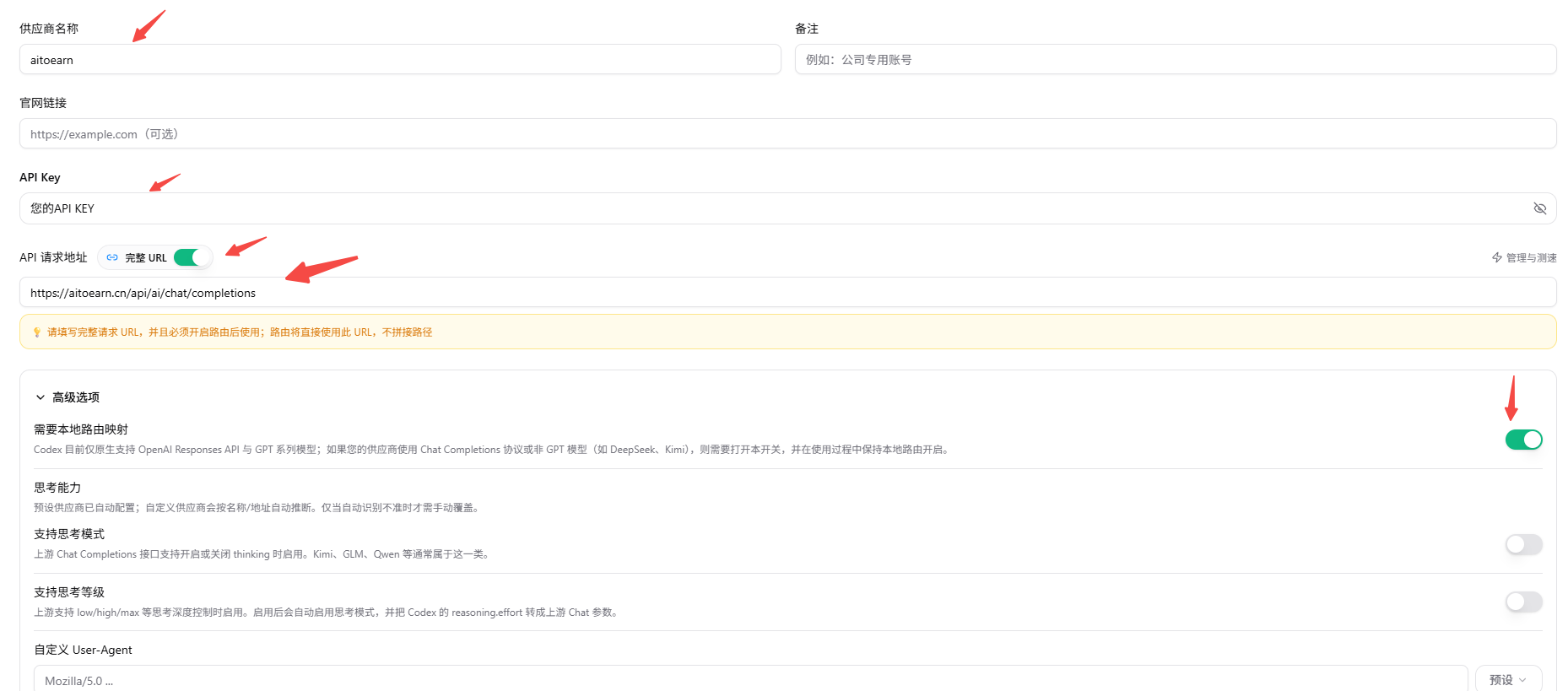 确认无误后保存配置。
## 启用供应商
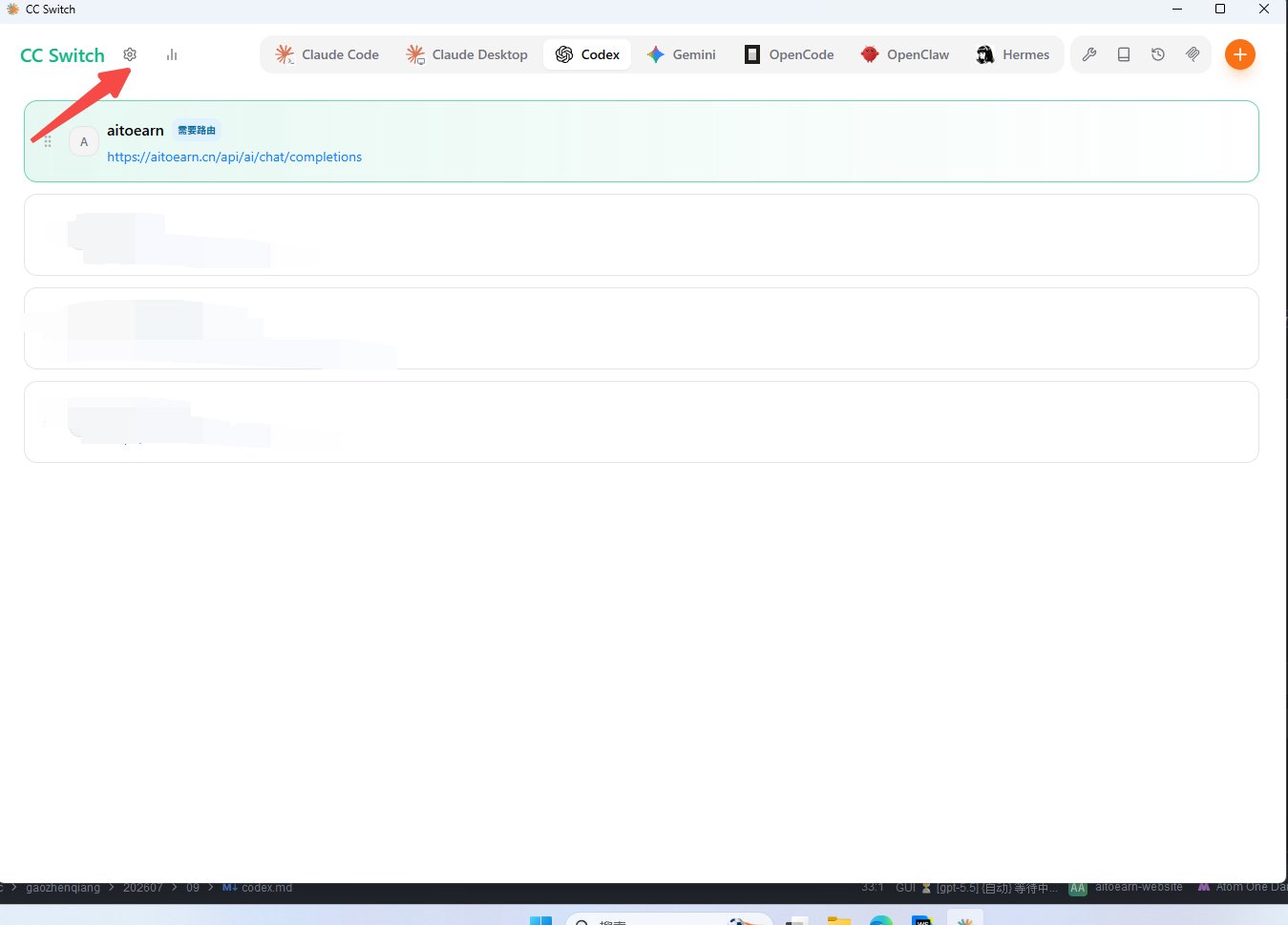
回到供应商列表,启用刚才创建的 AiToEarn 配置。
确认无误后保存配置。
## 启用供应商
回到供应商列表,启用刚才创建的 AiToEarn 配置。
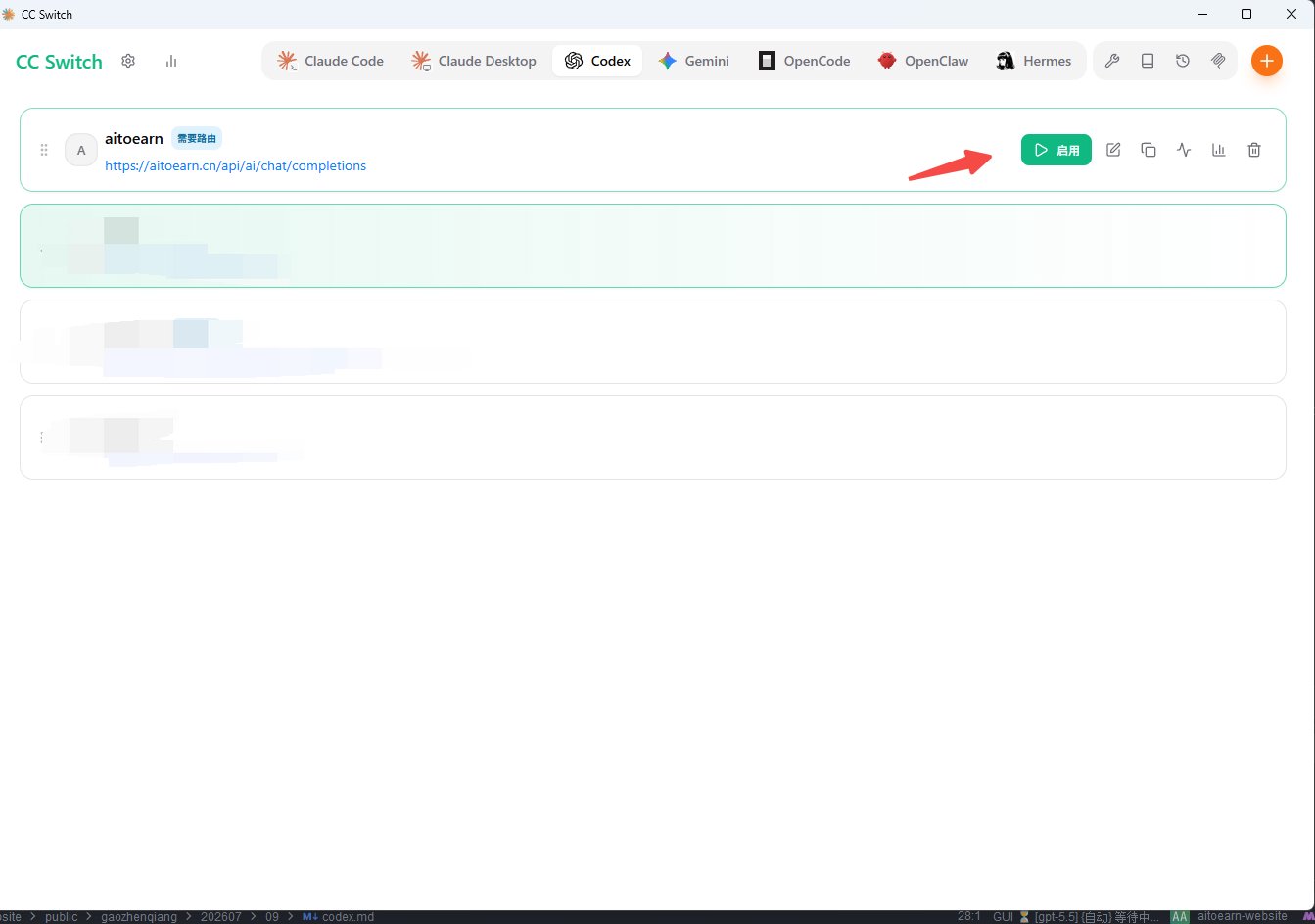 点击设置入口。
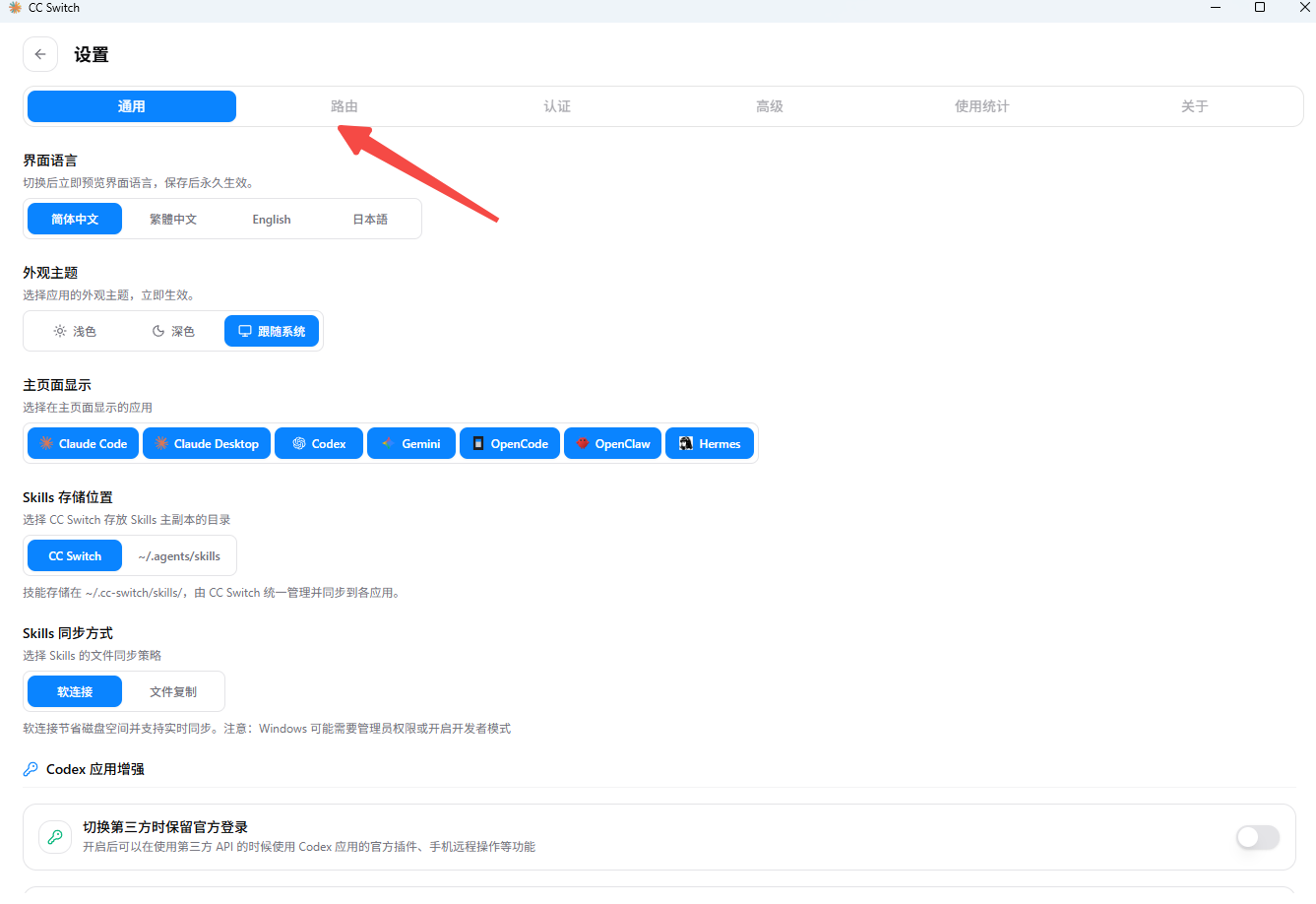
 进入路由设置。
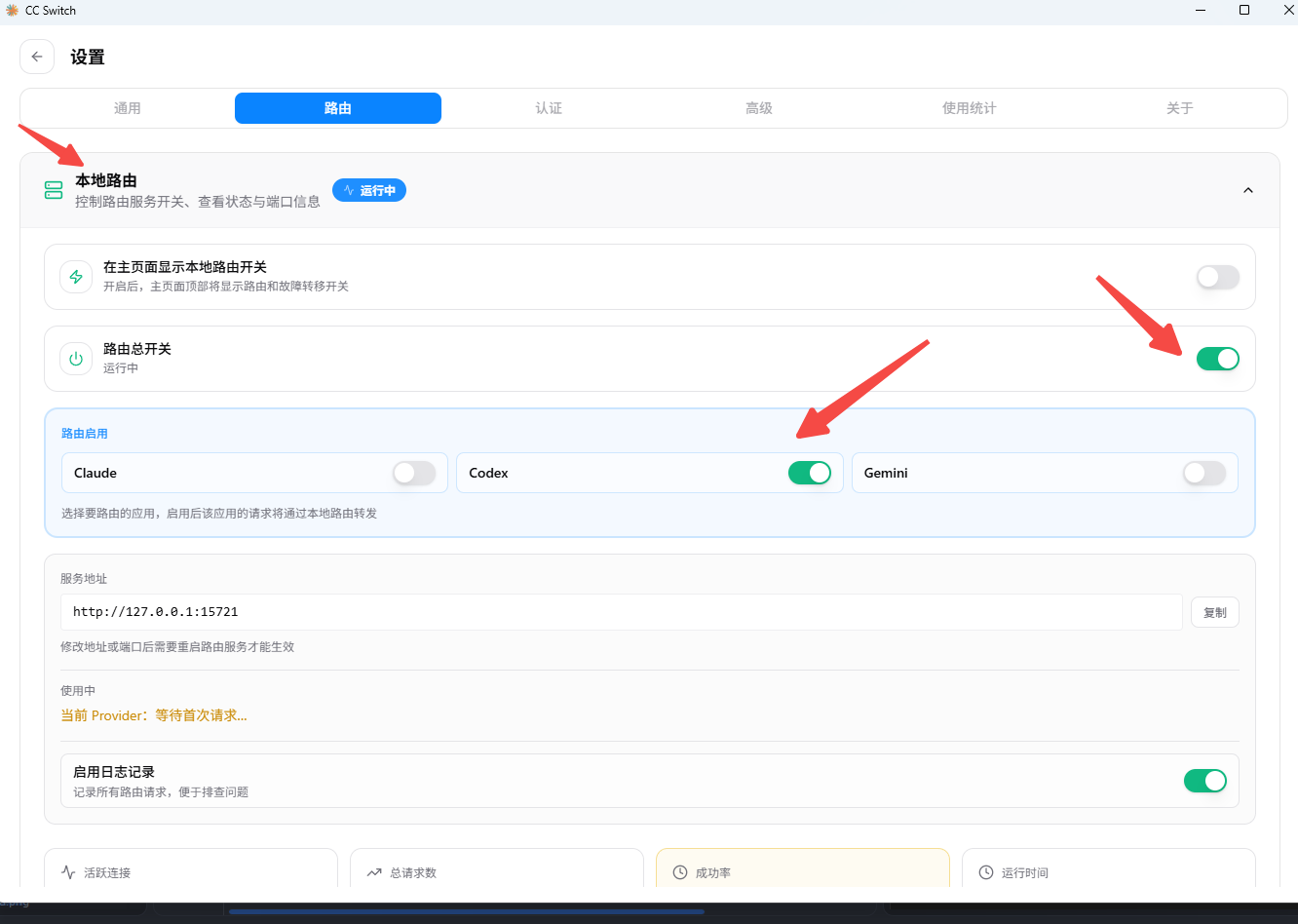
 开启路由。开启后,cc-switch 会在本机处理 Codex 的请求,并转发到你配置的 AiToEarn 接口。
 ## 验证接入
保持 cc-switch 运行,然后打开 Codex 发起一次简单对话。如果能正常返回结果,说明 Codex 已经通过 cc-switch 使用 AiToEarn 对话接口。
如果请求失败,优先检查:
* API Key 是否来自当前填写的站点。
* API 请求地址是否与站点一致。
* AiToEarn 供应商配置是否已启用。
* cc-switch 的 Codex 路由是否已开启。
* Codex 使用的模型名称是否来自 [对话模型列表](/api-reference/get-api-ai-models-chat)。
## 验证接入
保持 cc-switch 运行,然后打开 Codex 发起一次简单对话。如果能正常返回结果,说明 Codex 已经通过 cc-switch 使用 AiToEarn 对话接口。
如果请求失败,优先检查:
* API Key 是否来自当前填写的站点。
* API 请求地址是否与站点一致。
* AiToEarn 供应商配置是否已启用。
* cc-switch 的 Codex 路由是否已开启。
* Codex 使用的模型名称是否来自 [对话模型列表](/api-reference/get-api-ai-models-chat)。