> ## Documentation Index
> Fetch the complete documentation index at: https://docs.aitoearn.ai/llms.txt
> Use this file to discover all available pages before exploring further.
# Claude Desktop Setup
> Configure Claude Desktop to use AiToEarn's Anthropic compatible endpoint
Claude Desktop can be configured to use third-party inference providers. After configuring AiToEarn, Claude Desktop sends requests through AiToEarn's Anthropic compatible endpoint and authenticates with your AiToEarn API Key.
This feature requires a recent Claude Desktop client. Older versions may not show the `Developer` menu or third-party inference settings.
AiToEarn API Keys use the `ANTHROPIC_API_KEY` / `x-api-key` authentication method, not `ANTHROPIC_AUTH_TOKEN`. If the interface asks for an authentication method, choose `x-api-key`.
## Prerequisites
Before you start, make sure you have:
1. The latest Claude Desktop client.
2. An AiToEarn account.
3. [AiToEarn API Key](/en/use/api-key).
## Choose a Base URL
AiToEarn API Keys are bound to the site where they were created. The Base URL in Claude Desktop must match your API Key site.
| Site | Base URL |
| ------------------ | ---------------------------- |
| China site | `https://aitoearn.cn/api/ai` |
| International site | `https://aitoearn.ai/api/ai` |
Do not enter `/v1/messages`. Claude Desktop sends Anthropic Messages style requests, which will be routed to AiToEarn's [Anthropic messages endpoint](/api-reference/post-api-ai-v1-messages).
## Configure Claude Desktop
It is recommended to finish this configuration before logging in to Claude Desktop.
1. Open the latest Claude Desktop client.
2. Do not log in yet.
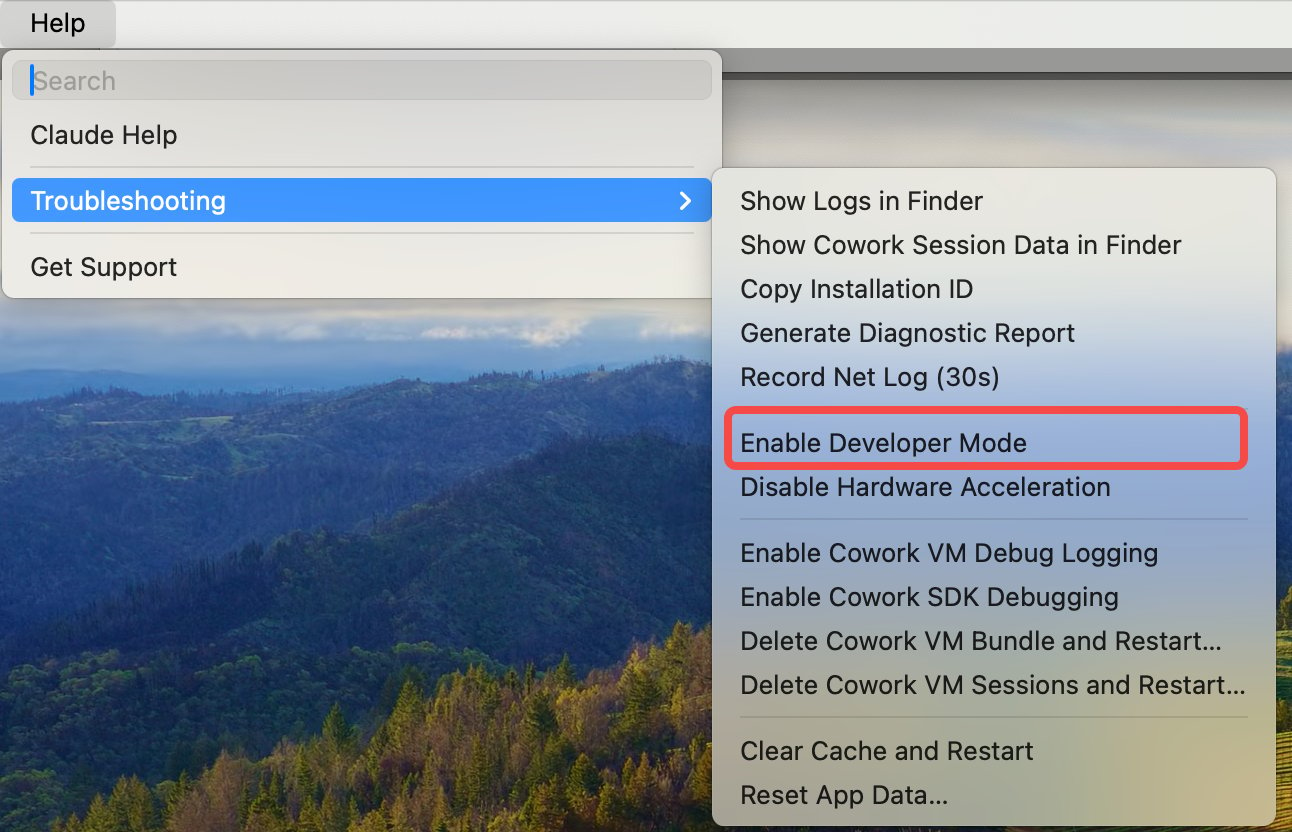
3. In the top menu bar, go to `Help` -> `Troubleshooting` -> `Enable Developer Mode`.
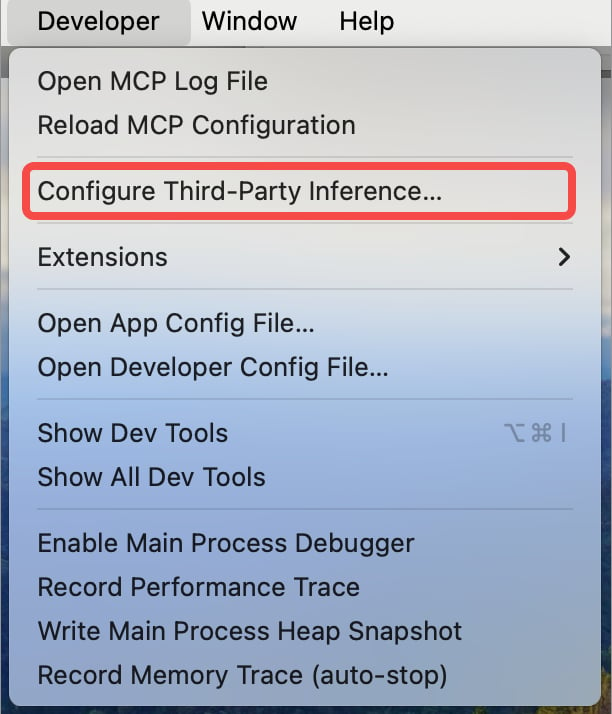
 After enabling developer mode, the `Developer` menu appears. Go to `Developer` -> `Configure third-party inference`.
 Fill in the third-party inference settings:
| Field | Value |
| --------------------- | -------------------------------------------------------------------------------------------- |
| Base URL | China site: `https://aitoearn.cn/api/ai`; international site: `https://aitoearn.ai/api/ai` |
| API Key | Your AiToEarn API Key |
| Authentication method | Choose `x-api-key` |
| Provider / API format | If this option appears, choose `Anthropic-compatible`, `custom gateway`, or a similar option |
Fill in the third-party inference settings:
| Field | Value |
| --------------------- | -------------------------------------------------------------------------------------------- |
| Base URL | China site: `https://aitoearn.cn/api/ai`; international site: `https://aitoearn.ai/api/ai` |
| API Key | Your AiToEarn API Key |
| Authentication method | Choose `x-api-key` |
| Provider / API format | If this option appears, choose `Anthropic-compatible`, `custom gateway`, or a similar option |
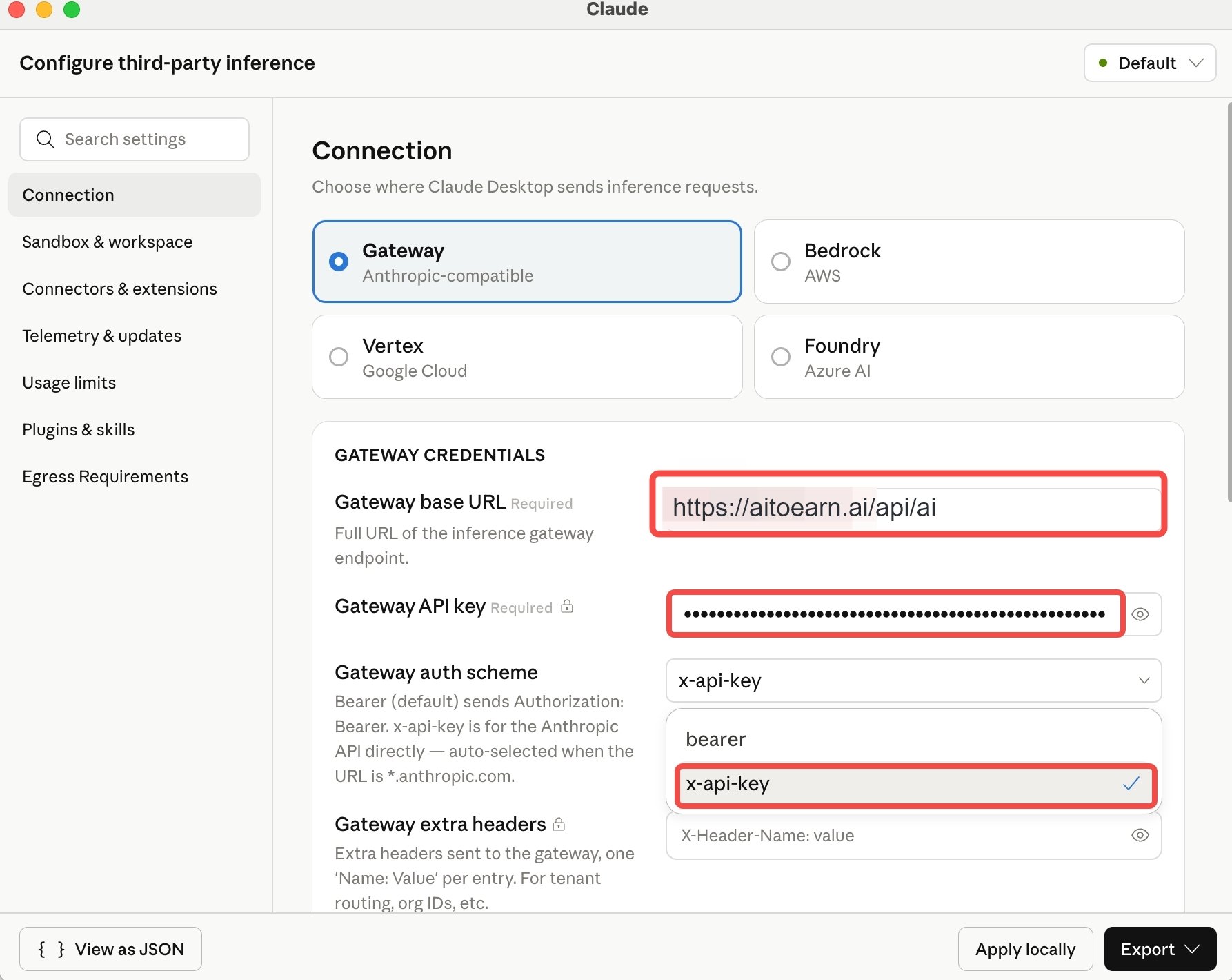 Choose `Apply locally` to save the configuration on the current computer.
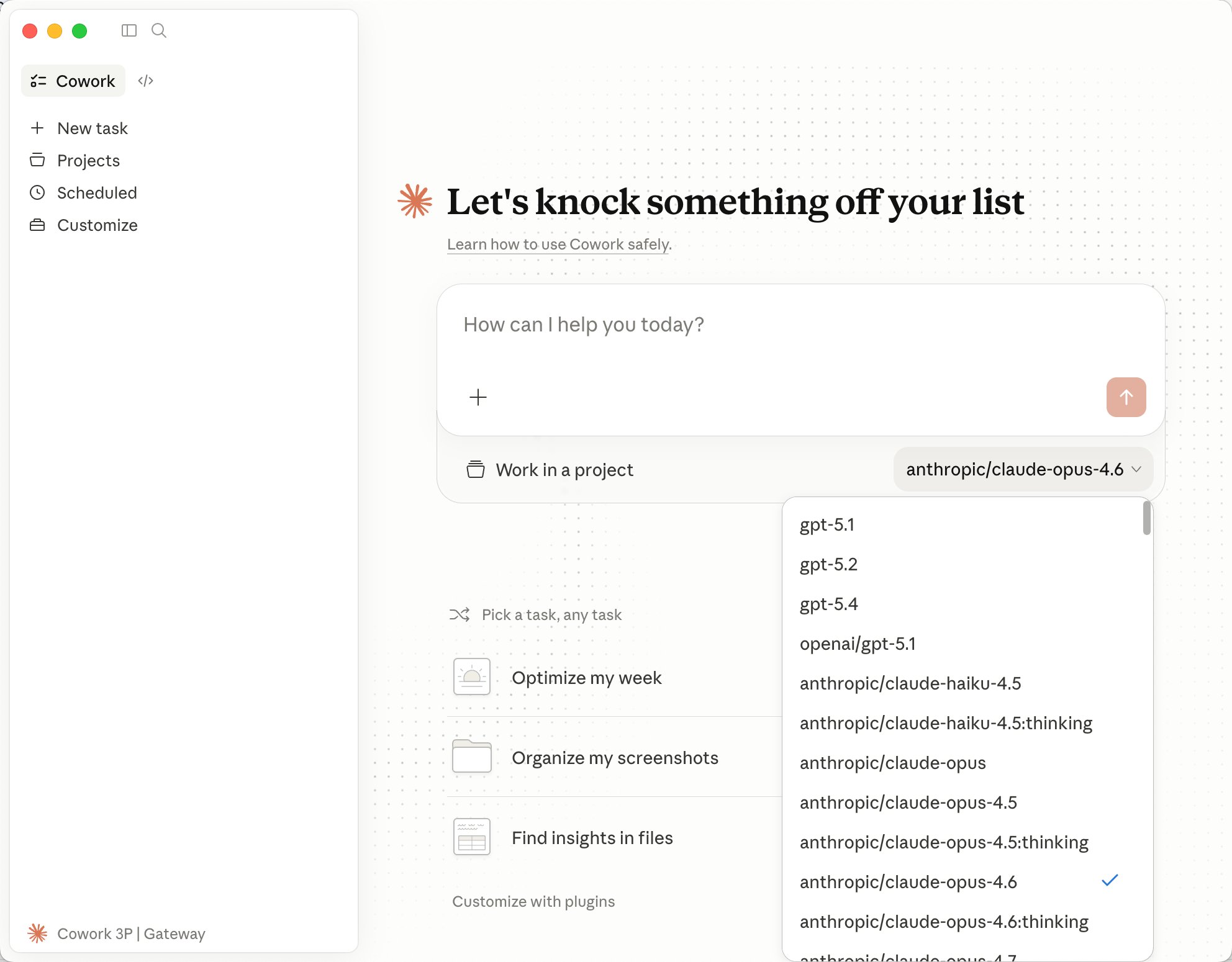 Follow the client prompts to log in or restart Claude Desktop.
## Verify the Setup
After applying the local configuration:
1. If the client asks for a restart, fully quit and reopen Claude Desktop.
2. Start a new conversation.
3. Send a simple test prompt:
```text theme={null}
If this request is using AiToEarn, reply in one sentence.
```
If you receive a normal response, Claude Desktop is sending requests through AiToEarn.
After the integration works, you can switch among available models on AiToEarn in Claude Desktop. Use [Chat models](/api-reference/get-api-ai-models-chat) as the source of truth for available model names.
## Troubleshooting
### Developer Menu Is Missing
* Confirm you have installed the latest Claude Desktop.
* Enable developer mode from `Help` -> `Troubleshooting` -> `Enable Developer Mode`.
* Fully quit and reopen Claude Desktop after enabling it.
### Configure Third-Party Inference Is Missing
* Confirm you are using the Claude Desktop client, not the web app.
* Try enabling developer mode before logging in.
* Update Claude Desktop and try again.
### Invalid API Key
* Copy the full key from [AiToEarn API Key](/en/use/api-key).
* Check for leading or trailing spaces.
* Confirm the authentication method is `x-api-key`.
* Do not use `ANTHROPIC_AUTH_TOKEN`.
### Connection or Model Errors
* China site Base URL must be `https://aitoearn.cn/api/ai`.
* International site Base URL must be `https://aitoearn.ai/api/ai`.
* Confirm the Base URL and API Key belong to the same site.
* If Claude Desktop provides model selection, switch to another available model returned by [Chat models](/api-reference/get-api-ai-models-chat) and test again.
Follow the client prompts to log in or restart Claude Desktop.
## Verify the Setup
After applying the local configuration:
1. If the client asks for a restart, fully quit and reopen Claude Desktop.
2. Start a new conversation.
3. Send a simple test prompt:
```text theme={null}
If this request is using AiToEarn, reply in one sentence.
```
If you receive a normal response, Claude Desktop is sending requests through AiToEarn.
After the integration works, you can switch among available models on AiToEarn in Claude Desktop. Use [Chat models](/api-reference/get-api-ai-models-chat) as the source of truth for available model names.
## Troubleshooting
### Developer Menu Is Missing
* Confirm you have installed the latest Claude Desktop.
* Enable developer mode from `Help` -> `Troubleshooting` -> `Enable Developer Mode`.
* Fully quit and reopen Claude Desktop after enabling it.
### Configure Third-Party Inference Is Missing
* Confirm you are using the Claude Desktop client, not the web app.
* Try enabling developer mode before logging in.
* Update Claude Desktop and try again.
### Invalid API Key
* Copy the full key from [AiToEarn API Key](/en/use/api-key).
* Check for leading or trailing spaces.
* Confirm the authentication method is `x-api-key`.
* Do not use `ANTHROPIC_AUTH_TOKEN`.
### Connection or Model Errors
* China site Base URL must be `https://aitoearn.cn/api/ai`.
* International site Base URL must be `https://aitoearn.ai/api/ai`.
* Confirm the Base URL and API Key belong to the same site.
* If Claude Desktop provides model selection, switch to another available model returned by [Chat models](/api-reference/get-api-ai-models-chat) and test again.