> ## Documentation Index
> Fetch the complete documentation index at: https://docs.aitoearn.ai/llms.txt
> Use this file to discover all available pages before exploring further.
# Getting started with Aitoearn publishing
> Connect channels, compose, schedule and publish in Aitoearn.
* To speed things up, log into the social network first, then open Aitoearn in a separate tab.
* In Aitoearn, click "Add Channels".
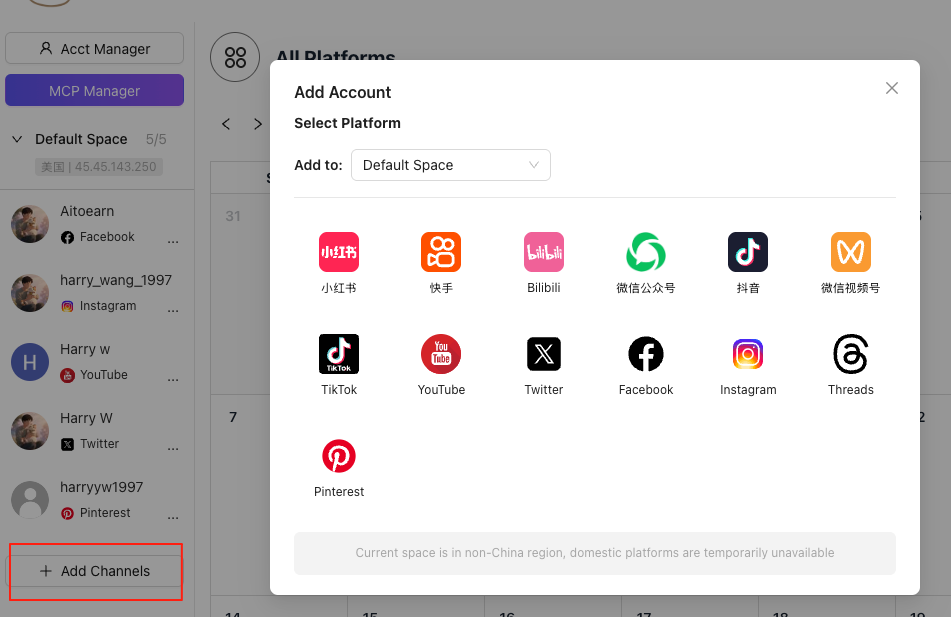 * Click the channel you want to connect.
* When the popup appears, click **Start connection**.
* Authorize Aitoearn to access your social account.
* Click **Add to Aitoearn**.
* You’ll see a confirmation in the top‑right once the connection succeeds.
## Spaces
* Each authorized channel belongs to a Space. Think of a space as an environment: desktop, mobile, etc.
* Inside a Space, you can configure device fingerprint details. The most important is the IP address.
* You can create as many Spaces as you need.
## Compose, schedule and publish
* Click **+ New Work** in the top‑right to open the editor (or click the + on the calendar).
* Select the channels you want to publish to.
* Click the channel you want to connect.
* When the popup appears, click **Start connection**.
* Authorize Aitoearn to access your social account.
* Click **Add to Aitoearn**.
* You’ll see a confirmation in the top‑right once the connection succeeds.
## Spaces
* Each authorized channel belongs to a Space. Think of a space as an environment: desktop, mobile, etc.
* Inside a Space, you can configure device fingerprint details. The most important is the IP address.
* You can create as many Spaces as you need.
## Compose, schedule and publish
* Click **+ New Work** in the top‑right to open the editor (or click the + on the calendar).
* Select the channels you want to publish to.
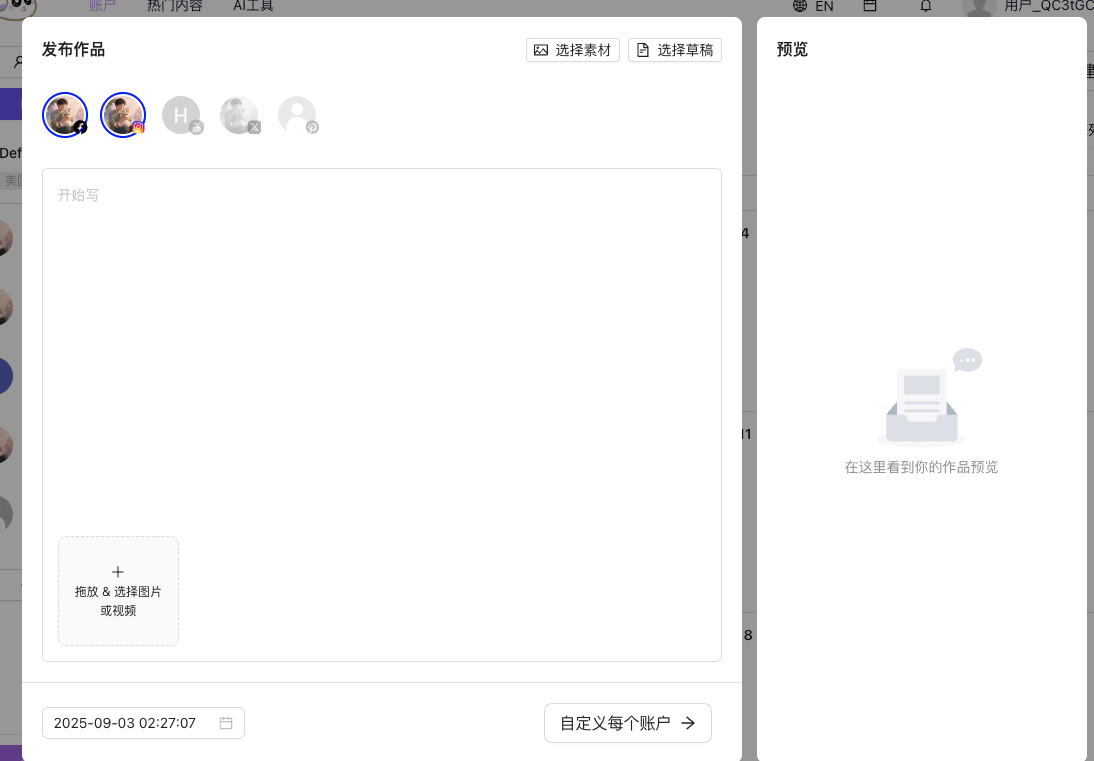 * Write your text, upload images or video, then choose **Customize for each network** to tailor content per platform.
* Choose to publish now or **set date and time**.
* Finally, click **Publish** to send it.
* Write your text, upload images or video, then choose **Customize for each network** to tailor content per platform.
* Choose to publish now or **set date and time**.
* Finally, click **Publish** to send it.